How to Delete Pages from PDF Offline for Free

Summary :
Learn how to delete pages from PDF offline for free using PDFgear on Windows and Mac, the Preview app on Mac, and Adobe Acrobat.
Table of Contents
Maybe there’s a blank page, an old section, or extra content in your PDF that’s no longer needed. Removing those pages keeps your document neat, focused, and easier to read.
Learn about the best ways to delete pages from PDF, or get started with PDFgear right away!
Delete Pages from PDFs on Windows for Free
PDFgear is a free and dedicated PDF editor that allows you to remove unwanted pages from PDF in a professional way.
It allows you to select page thumbnails for deletion, or batch delete dozens of pages at one go using page ranges.
Video Tutorial
Delete pages from PDF, split PDF, add pages to PDF, and rearrange PDF pages for free.
Step 1. Download and install PDFgear on your computer. Open PDFgear, and click Open File button to open the PDF you need.
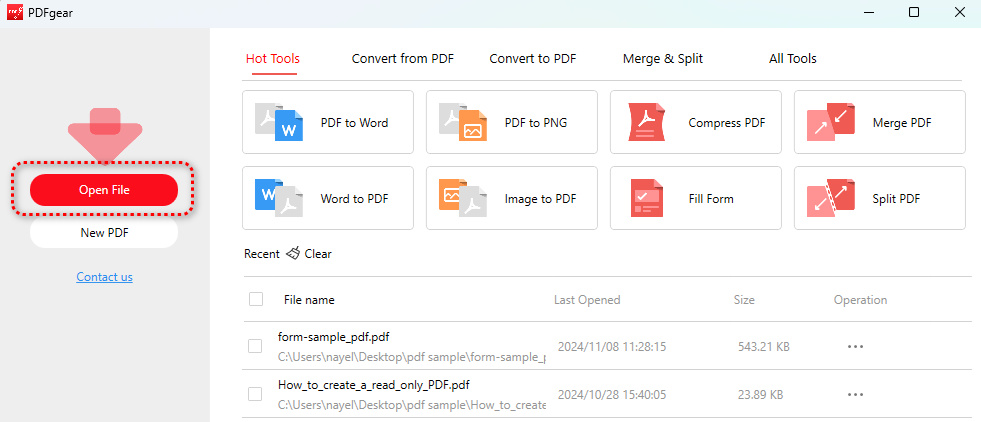
Open File
Step 2. Once the PDF is opened, go to the Page section.
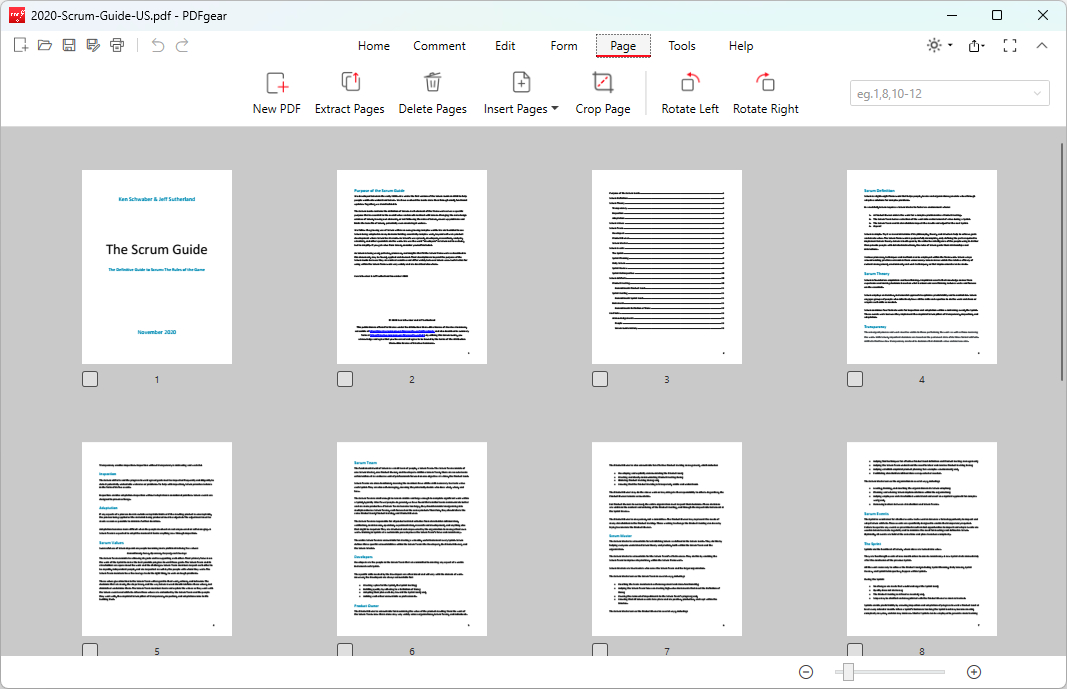
Go to Page
Step 3. Click to select the unwanted pages, and click the Delete Pages button from the upper menubar.
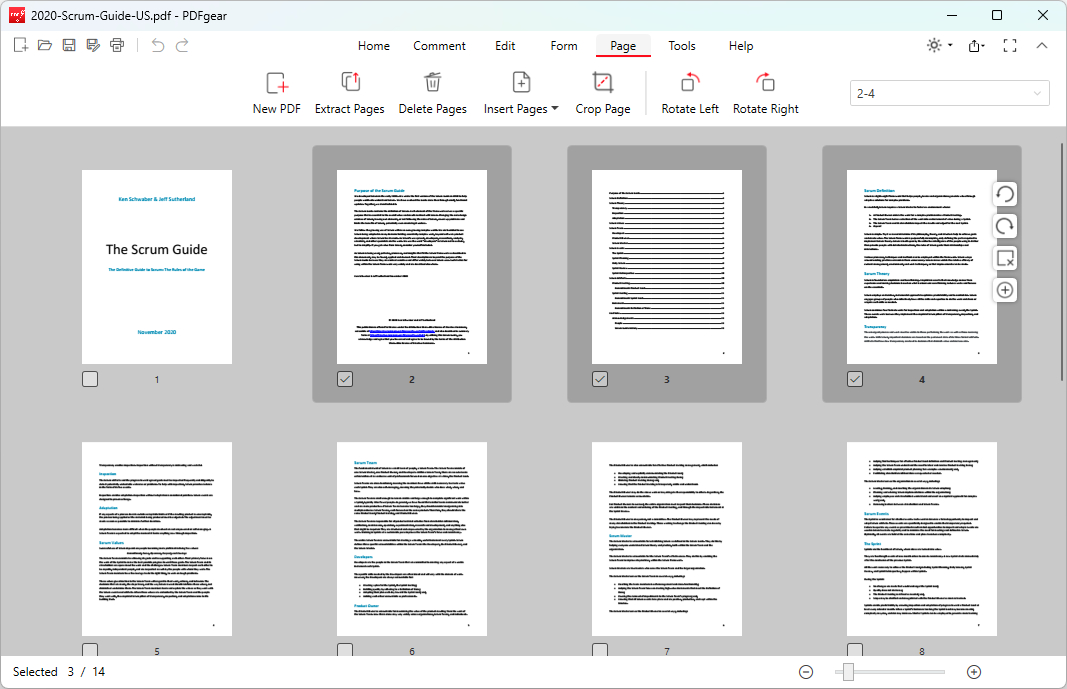
Select Pages
Step 4. Click OK to delete selected pages.
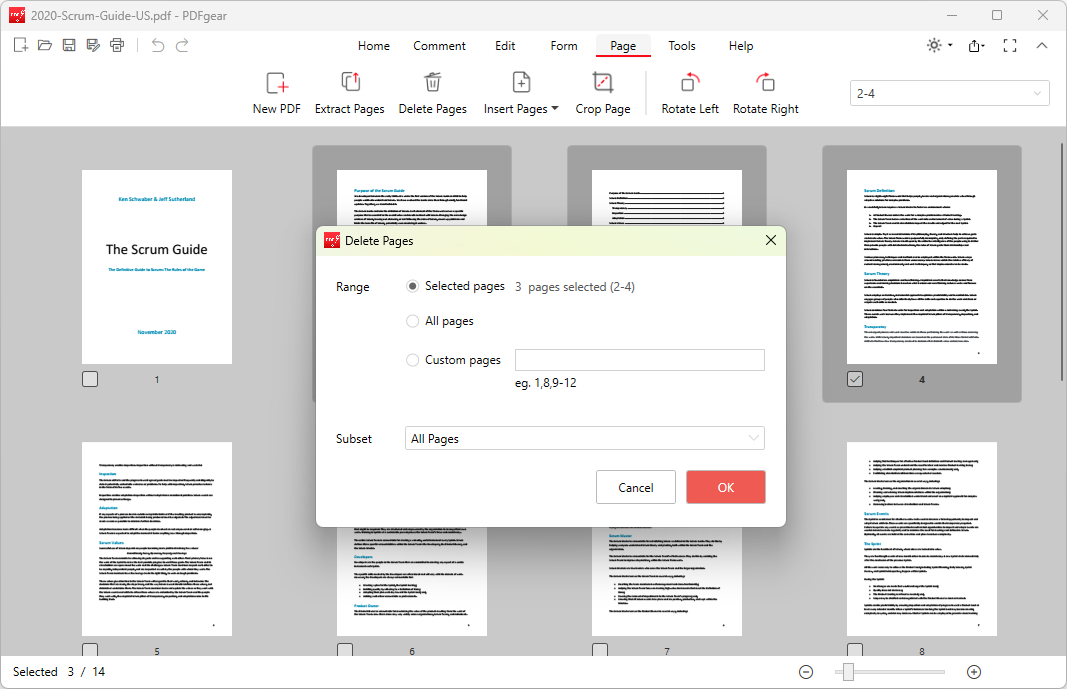
Delete Select Pages
Step 5. Alternatively, you can also delete dozens of pages at once, instead of selecting one by one.
In the Delete Pages window, define the unwanted pages with Custom pages, and choose a Subset if needed. Then click OK.
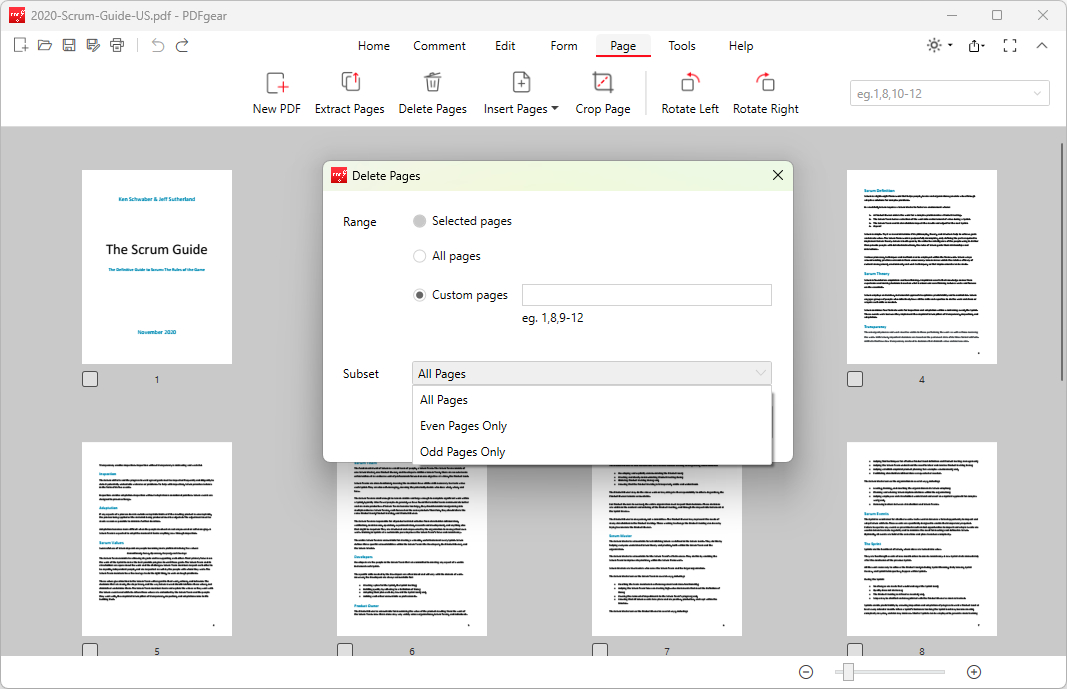
Delete Select Pages
Step 6. Lastly, click the top-left Save as button to save the PDF with pages deleted.
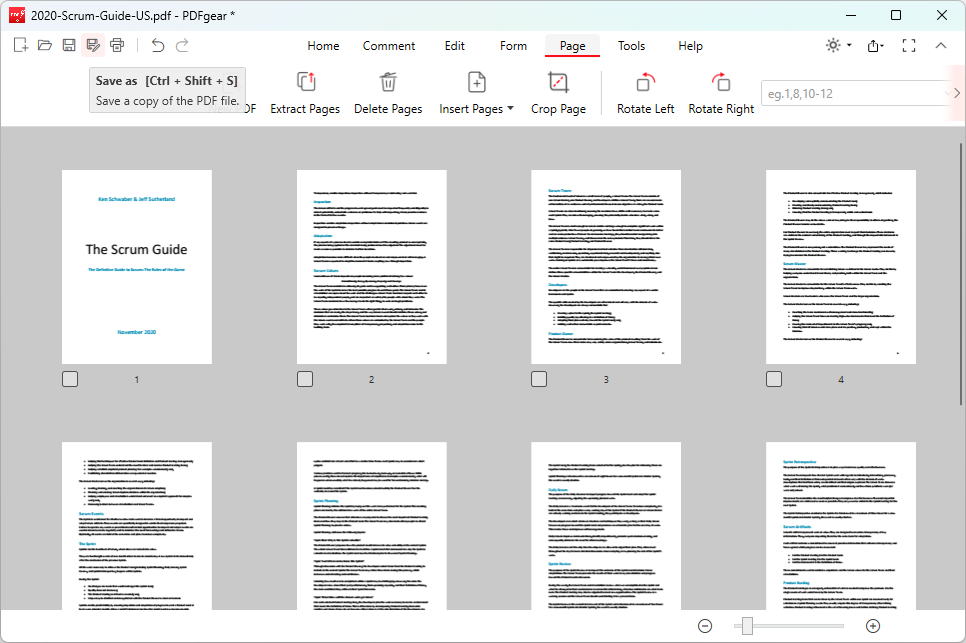
Save PDF
Delete Pages from PDFs on Mac for Free
PDFgear also offers a free app on macOS. It provides an intuitive interface for you to remove any pages from PDF in simple clicks.
PDFgear is a free and secure app in the Apple App Store, now get it on your device for free.

Step 1. Open PDFgear app, click Open File button to open the PDF you need to work with.
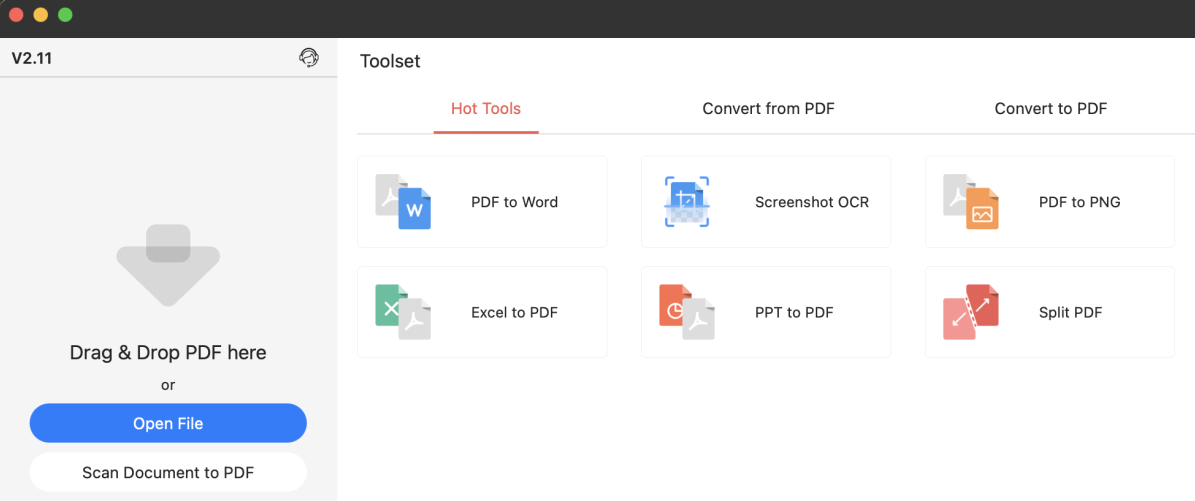
Open File
Step 2. Go to the Pages section, click on the thumbnails of the pages you intend to delete, and click the upper Delete button to remove them.

Select Pages to Delete
Step 3. Once done, go to File > Save As to save a copy of the modified PDF.
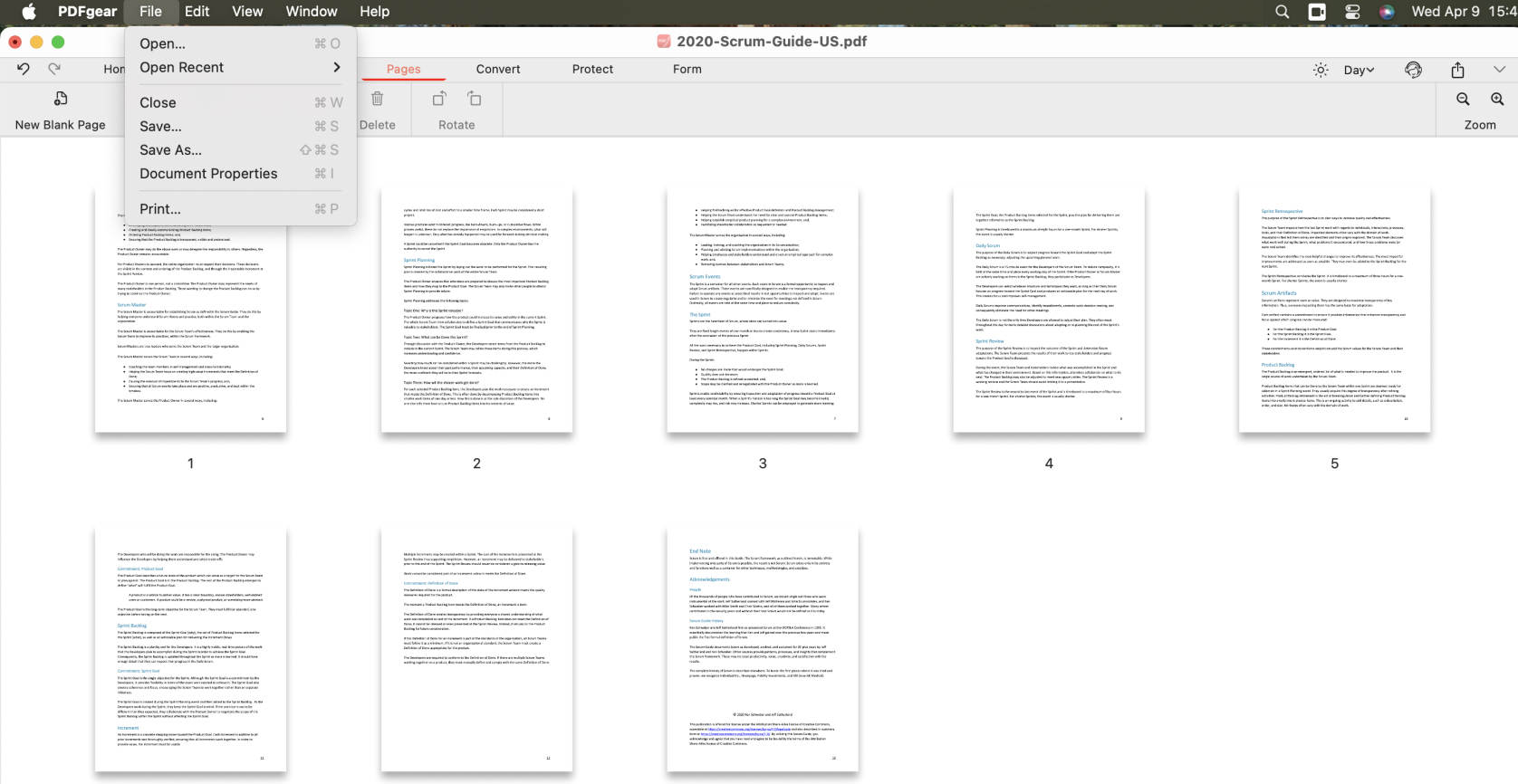
Save PDF
Delete Pages from PDF on Mac Using Preview
The Preview app on macOS is a versatile tool that goes beyond just viewing images and PDFs.
I’s also packed with some basic PDF editing features, luckily, page deletion is included.
Now follow the steps to delete PDF pages on Mac using Preview:
Step 1. Locate your PDF file in Finder. Right-click the file, select Open With, and choose Preview.
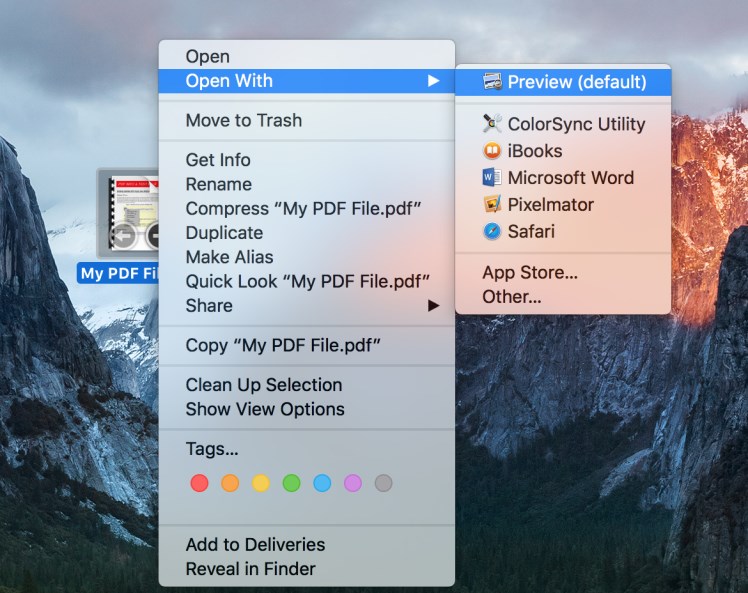
Open PDF with Preview App
Step 2. Go to the View tab, tick on the Thumbnails option to view page thumbnails.
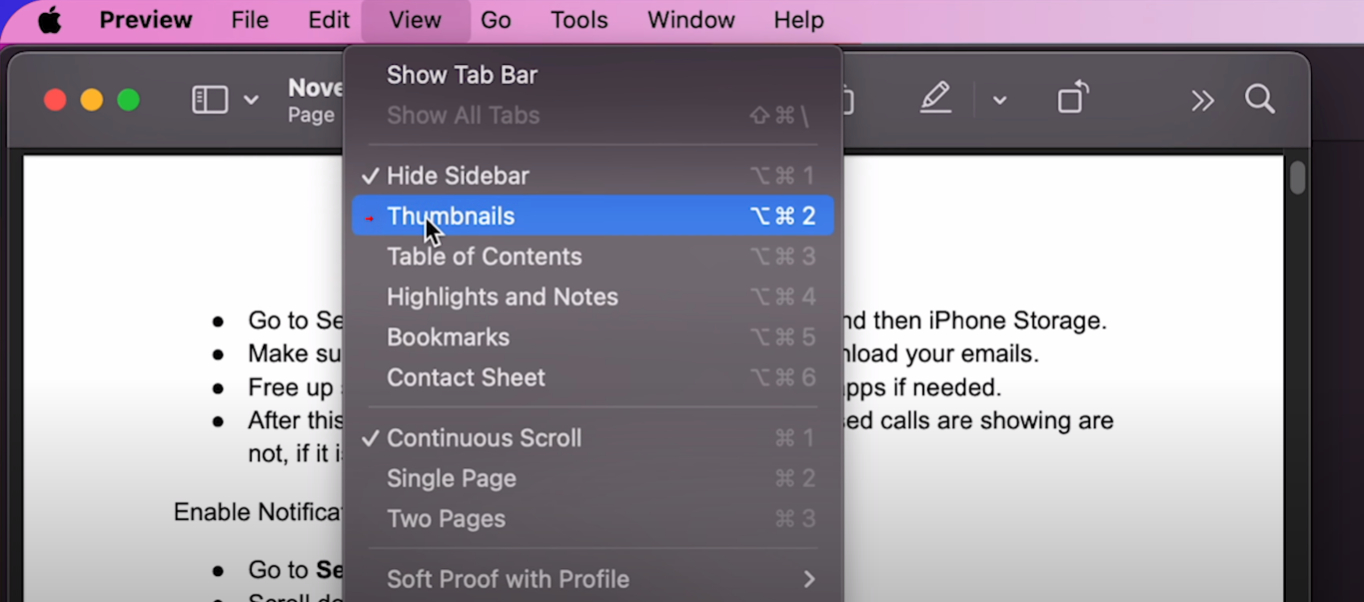
Enable Thumbnail View
Step 3. Click on the thumbnail of the page you intend to delete. For multiple pages, hold the Command key (⌘) and select pages.
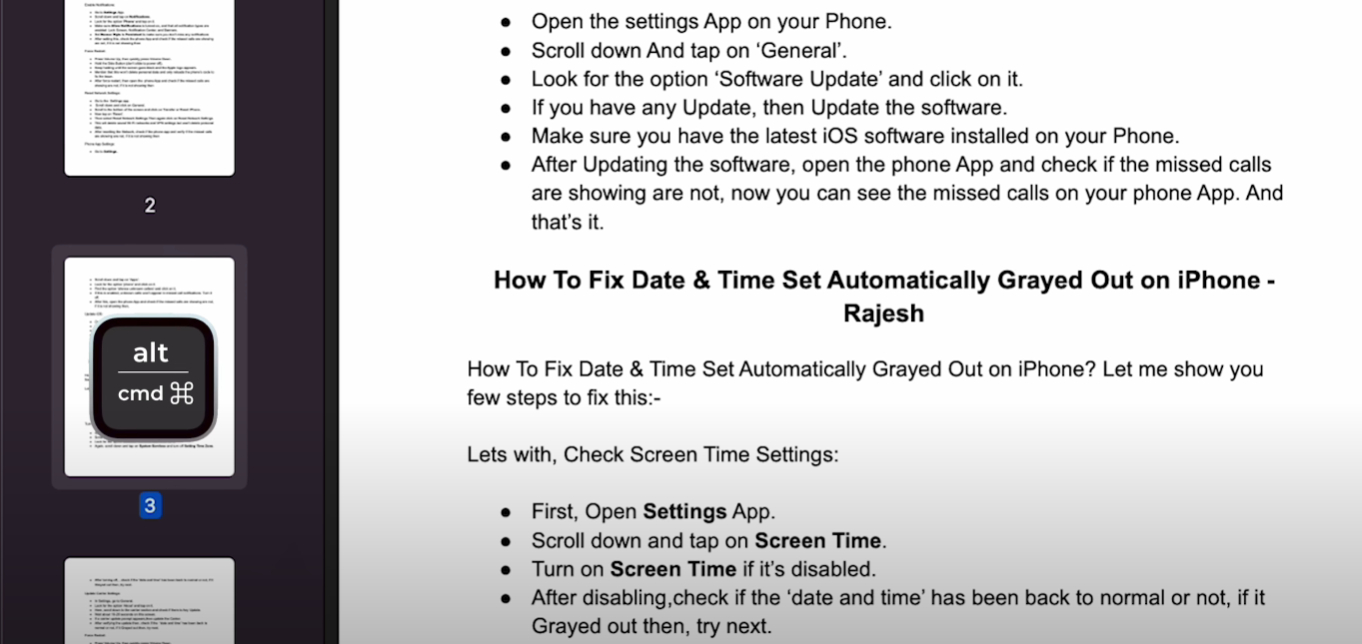
Select Pages
Step 4. Go to the Edit tab and click Delete in the dropdown to delete selected PDF pages.
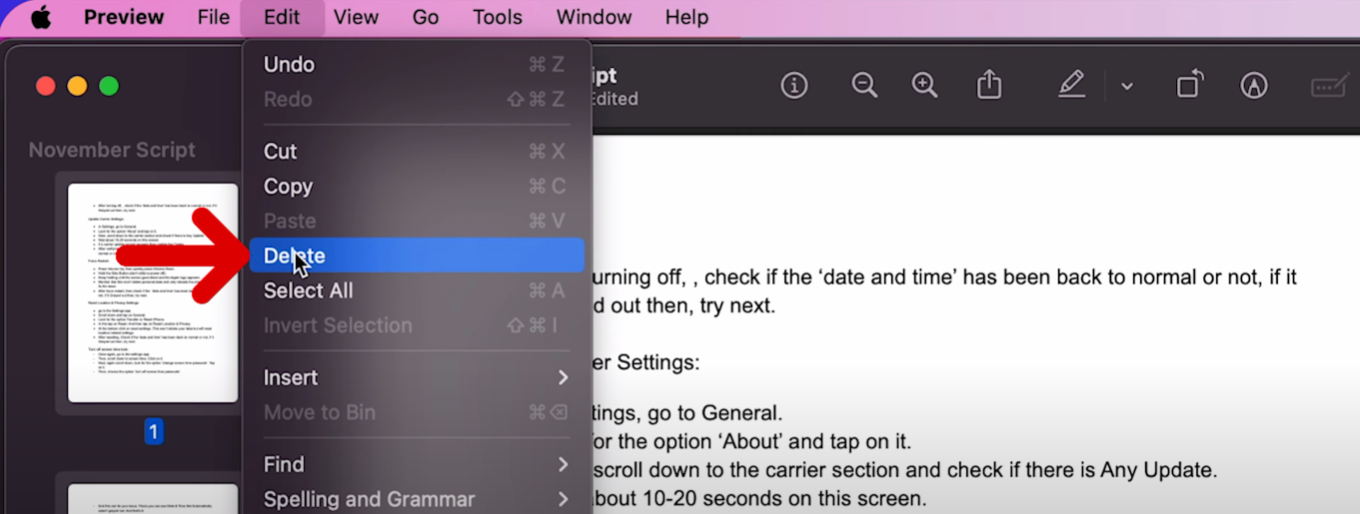
Delete Pages
Step 5. Lastly, go to the File tab and click Save in the dropdown to save the PDF with page deleted.
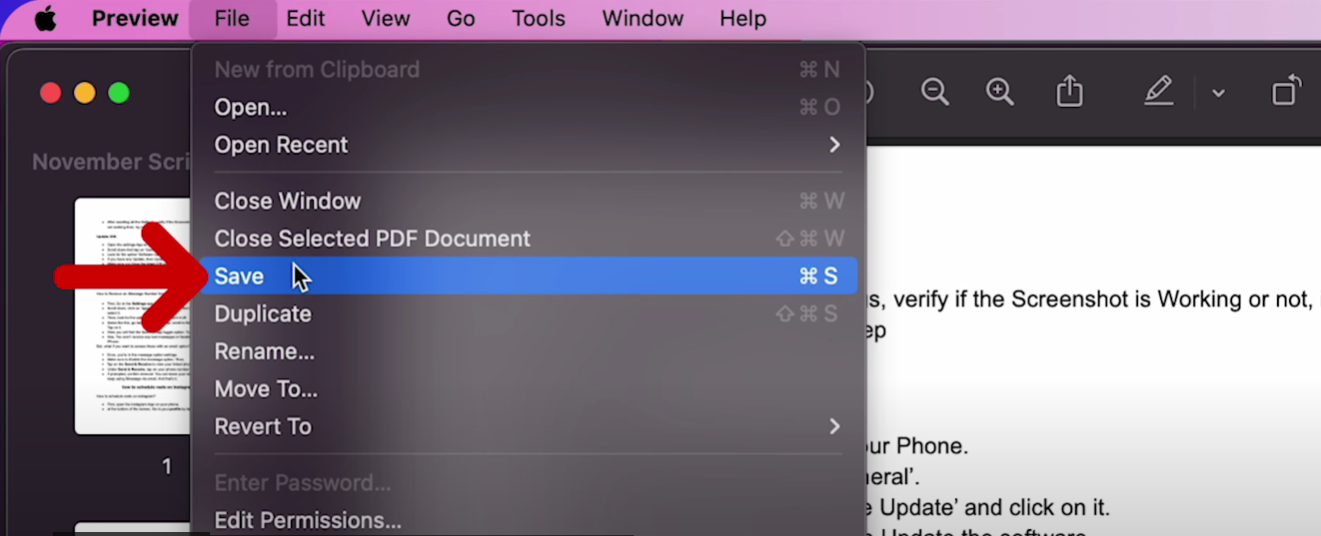
Save PDF
Delete Pages from PDF Using Adobe Acrobat Pro
The popular PDF editor Adobe Acrobat allows you to intuitively delete PDF pages. If you’re an Adobe user, this section is for you.
However, note that the page mangement features are only available in the paid Adobe Acrobat Pro, instead of the free version Adobe Acrobat Reader.
Step 1. Launch Adobe Acrobat on your computer. Go to File > Open to open the PDF.
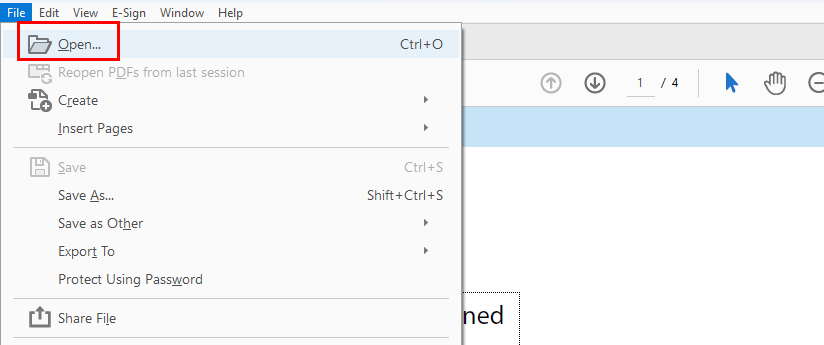
Open a PDF in Adobe Acrobat
Step 2. Go to the menubar on the right side and click the Organize Pages button.
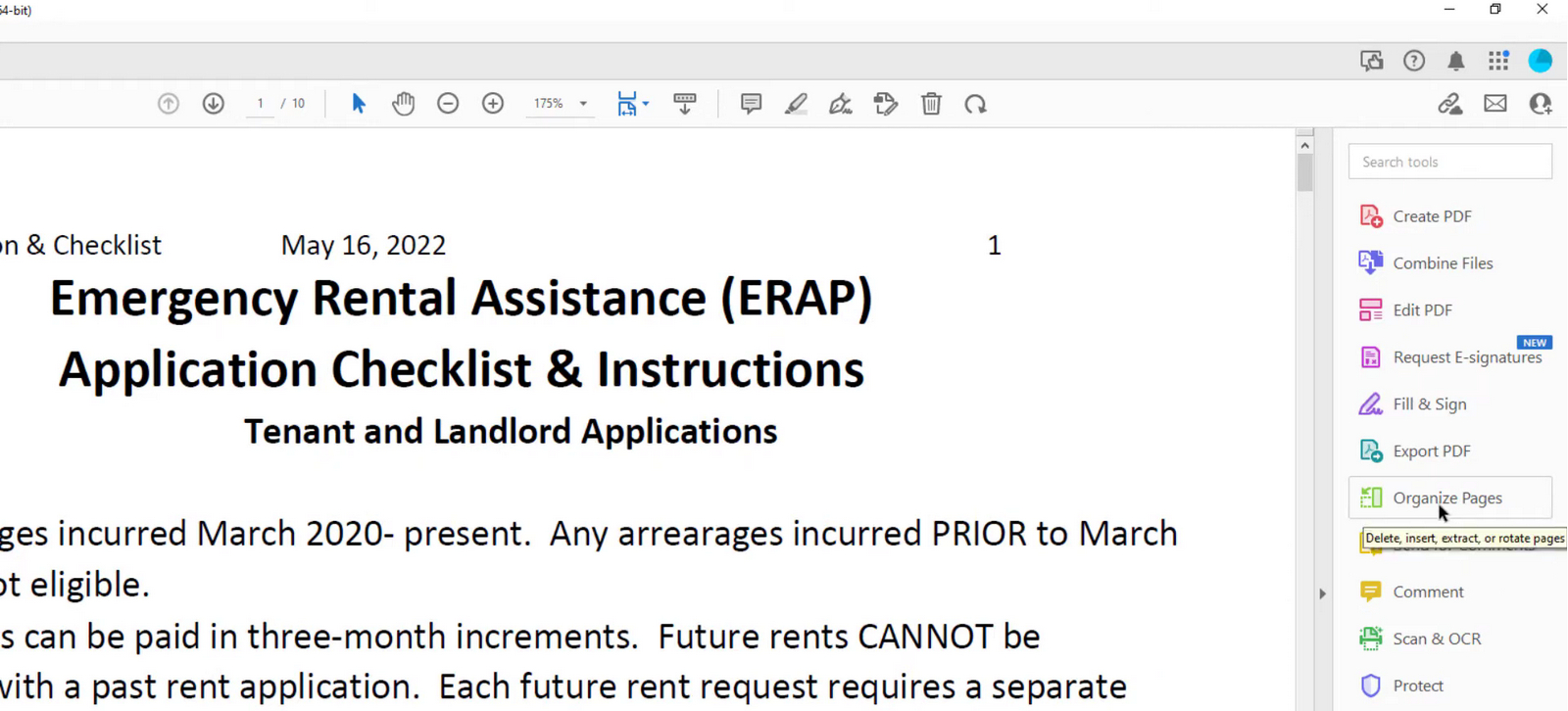
Organize Pages
Step 3. Click to select the all pages you intend to delete, and click the upper trash can icon.
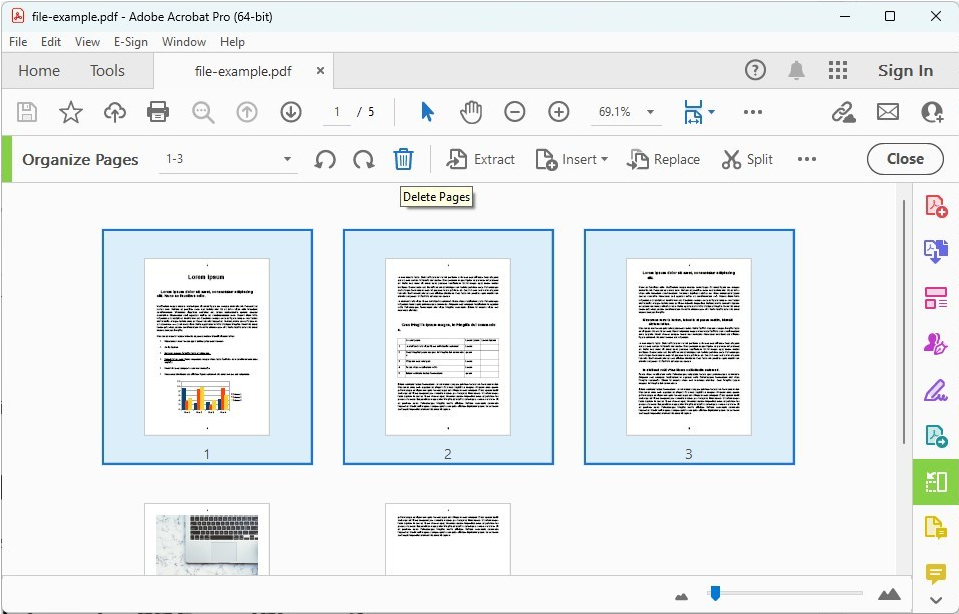
Select Pages
Step 4. Alternatively, right click on the selected pages and click Delete Pages.
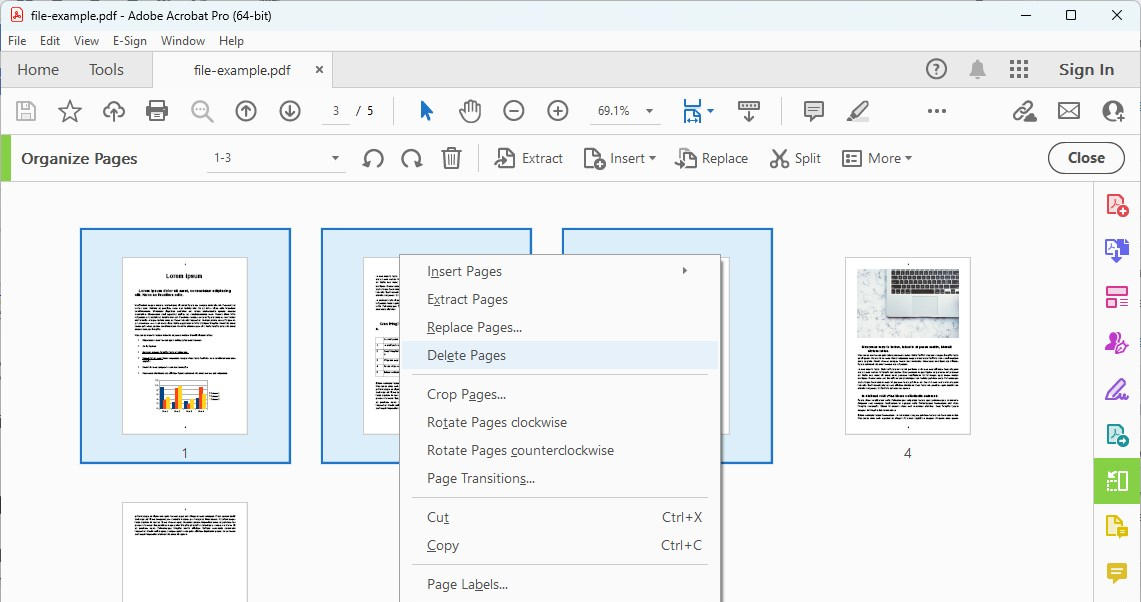
Delete Pages
Step 5. Once done, go to File > Save to save the PDF that has pages deleted.
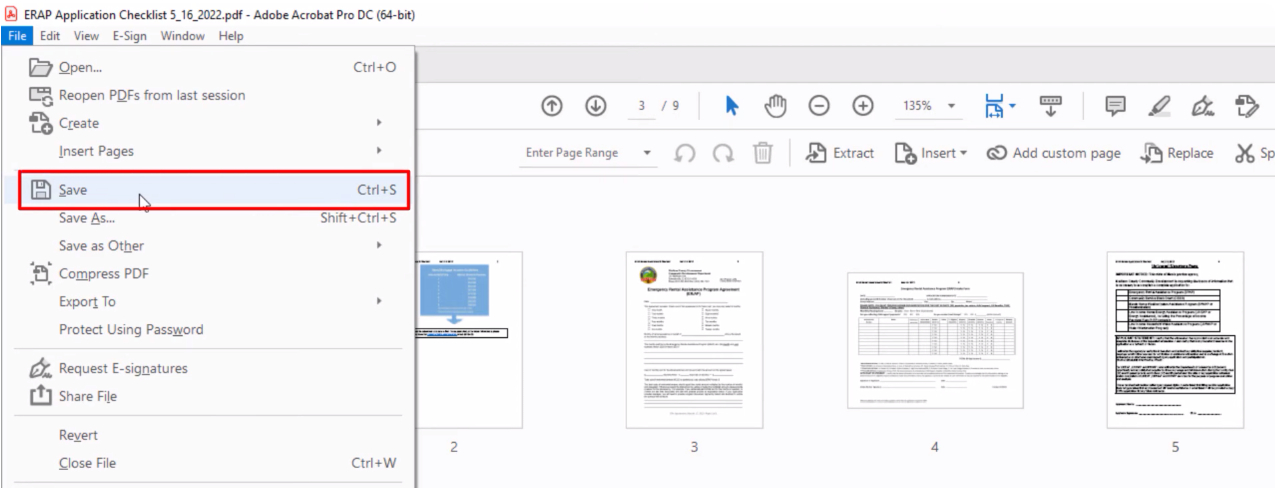
Save PDF
FAQs
Will deleting pages affect internal links, bookmarks, or the table of contents?
Yes. Deleting pages can break navigation links, cause bookmarks to misfire, or make TOCs inaccurate. You may need to manually update these afterward.
Why is the custom pages settings not working in PDFgear?
Make sure you have input the correct value for the custom page settings. Use comma to separate differnt pages, and use hyphens to define a page range, without blank spaces.
Can I replace pages in a PDF?
Yes. In PDFgear, go to the thumbnail view of your PDF, select the unwanted PDF page, delete it, and use the insert pages feature to replace it with a new page from a PDF, a Word document, or an image.
Can I delete pages from a scanned or image-only PDF?
Yes, PDFgear allows you to delete pages from a scanned or image-only PDF without trouble.
Will deleting pages from a PDF reduce its file size?
Yes, removing pages generally decreases the file size, especially if the pages contain images, graphics, or large content.
What does the subset settings do in PDFgear?
It allows you to delete only even pages or only odd pages by their page numbers.
