How to Sign a PDF in Chrome

Summary :
This step-by-step guide explores 2 free methods to sign a PDF in Chrome with a free online signer and a Chrome extension.
Table of Contents
Ever tried signing a PDF in Chrome and felt stuck? You’re not alone. Before we dive into solutions, here are two common scenarios:
1. You have a PDF on your device, and Chrome opens it by default.
2. You encounter a PDF online while using Chrome.
The challenge is that Chrome doesn’t include a built-in signing feature. Instead. Instead, you’ll need an online PDF signer or a dedicated Chrome extension to make it happen.
Ready to see how easy it can be? Watch this video to learn how to sign a PDF in Chrome like a pro in just a few clicks!
How to Add Signatures in a PDF in Chrome
How to Sign PDF in Chrome with an Online PDF Signer
PDFgear Online Signer offers a fast and easy way to sign PDFs directly in Chrome. This free, user-friendly tool simplifies PDF editing and management with three signature options: upload an image, type with your keyboard, or draw with your mouse.
Ready to see how it works? Let’s dive into the details!
Note: If you’re dealing with an online PDF, download it to your device first.
Step 1. Access the PDF Online Signer
Go to the PDFgear Online Signer, click “Upload PDF Files” to open your PDF, or simply drag and drop it in.
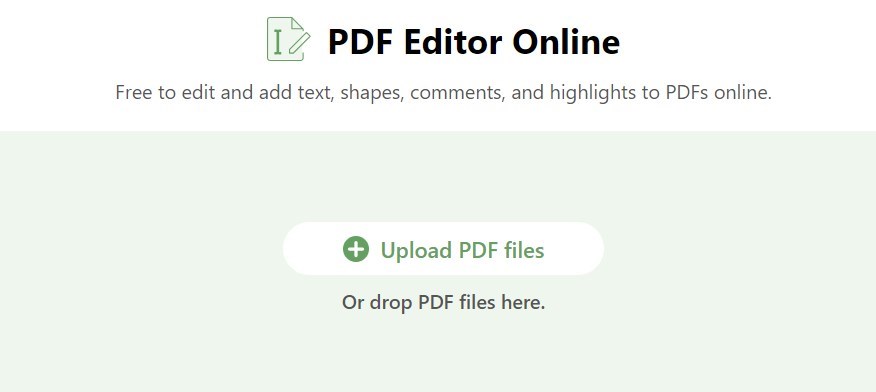
Upload a PDF Online to Sign
Step 2. Add Signature
Click “Add or Edit Annotations” and choose “Add Signature.” Draw, type, or upload your signature, then hit “Create”.
Don’t forget to check Save Signature so you can reuse it anytime!
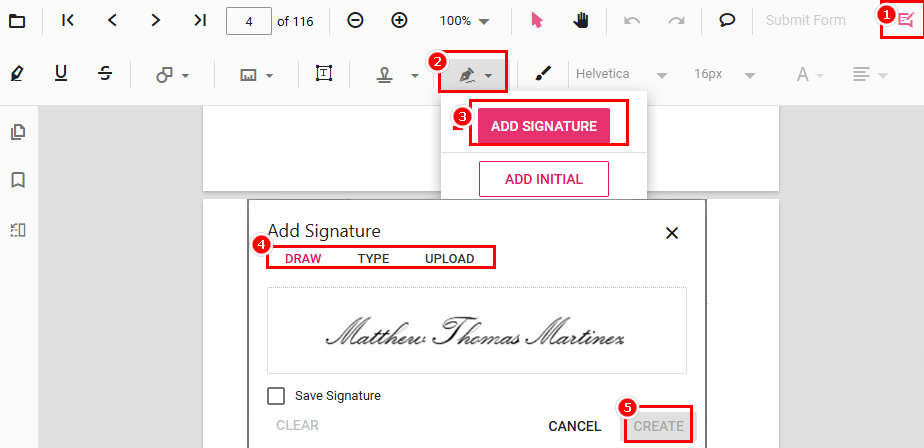
Create a Signature in PDFgear Online Signer
Step 3. Adjust Your Signature
Place your signature where you want it, resize it, and download the signed PDF. Your signature will be flattened, locked in, and secure!
Tip: Flattening a signature means merging it permanently into the PDF. Once saved, it cannot be moved or deleted, ensuring your signature is secure and tamper-proof.
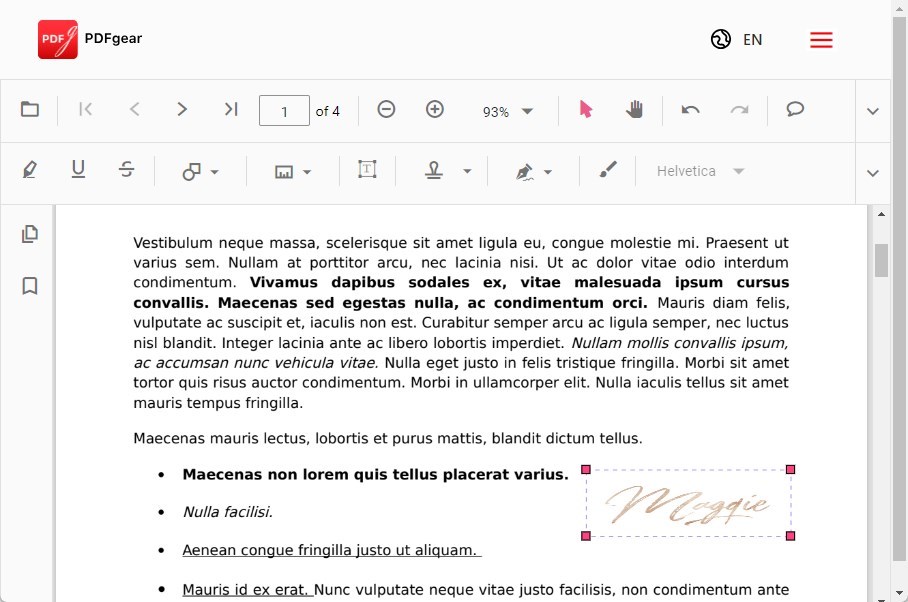
Adjust the Signature in PDFgear Online Signer
Although PDFgear’s online signer is convenient, it doesn’t support adding multiple signatures simultaneously and requires a stable internet connection.
For more advanced features and a smoother experience, consider downloading PDFgear.
How to Sign PDF in Chrome with Extension
A Chrome extension for signing PDFs is super convenient, offering cross-device compatibility and collaboration features.
Adobe Acrobat is a popular choice, offering free PDF signing tools, though it limits file sizes to 10MB and has some usage restrictions — but it’s still great for quick tasks!
Step 1. Visit the Chrome Web Store, search for Adobe Acrobat, and click “Add to Chrome” to install the extension.
Step 2. Open the Adobe Acrobat extension, click “Sign”, select “Fill & Sign”, and click “Select” a file to open the PDF you want to sign.
For PDFs you find online, open them directly using the extension.
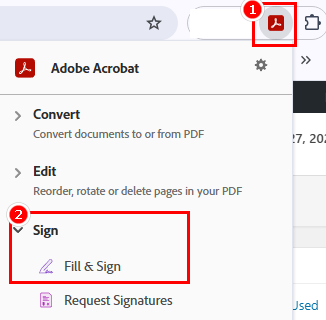
Open PDF with Adobe Acrobat Extension
Step 3. Click the “Sign” button (pen icon) and create your signature by typing, drawing, or uploading a signature.
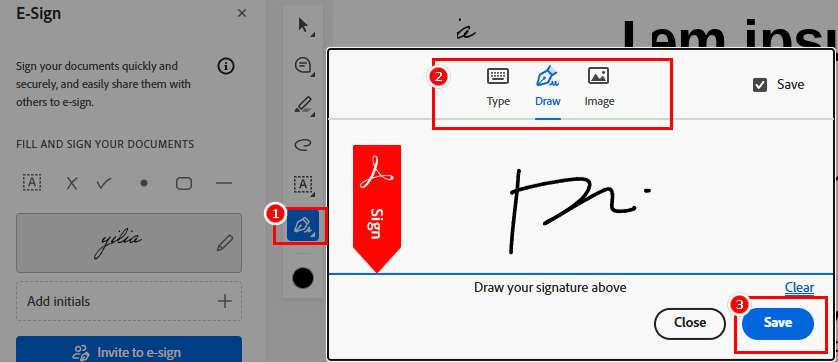
Create Signature in Adobe Acrobat Extension
Step 4. After signing, you can generate a shareable link for the PDF or invite others to sign.
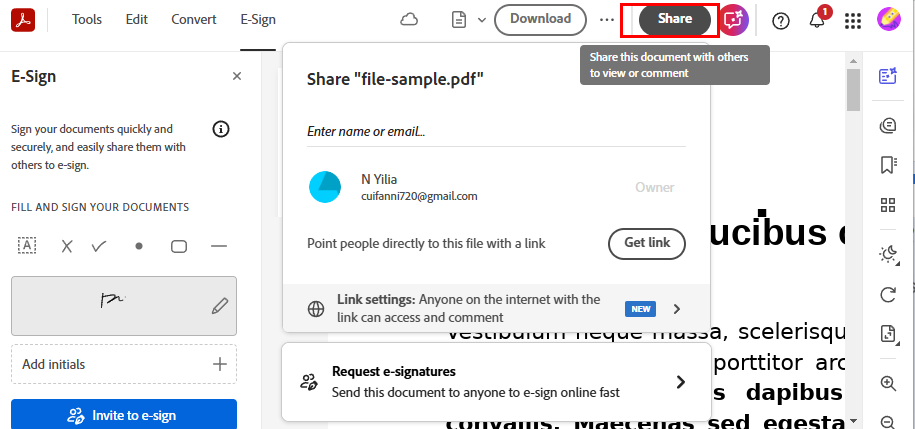
Share the Signed PDF
Sign a PDF in Google Chrome FAQs
Do I need any special software to sign a PDF in Chrome?
No, you don’t need special software to sign a PDF in Chrome. Use the PDFgear Online Signer to add a signature without any installation. For detailed steps, refer to Method 1.
Can I save the signed PDF directly from Chrome?
Yes, after signing a PDF through an online service or extension in Chrome, you can save the signed document to your computer or cloud storage service.
Is it secure to sign a PDF in Chrome?
It depends on the service or extension you use. Reputable services like PDFgear and Adobe Acrobat use encryption and offer a secure platform for signing documents. Always ensure that you are using a trusted service.
How to add a digital signature in Chrome?
To add a digital signature in Chrome, install the Adobe Acrobat Extension from the Chrome Web Store and open your PDF in the extension.
Go to “Tools” > “Certificates”, select “Digitally Sign”, and use an existing digital ID or create one by entering your details and setting a password. Place the signature field, confirm with your ID, and save the tamper-proof signed PDF.
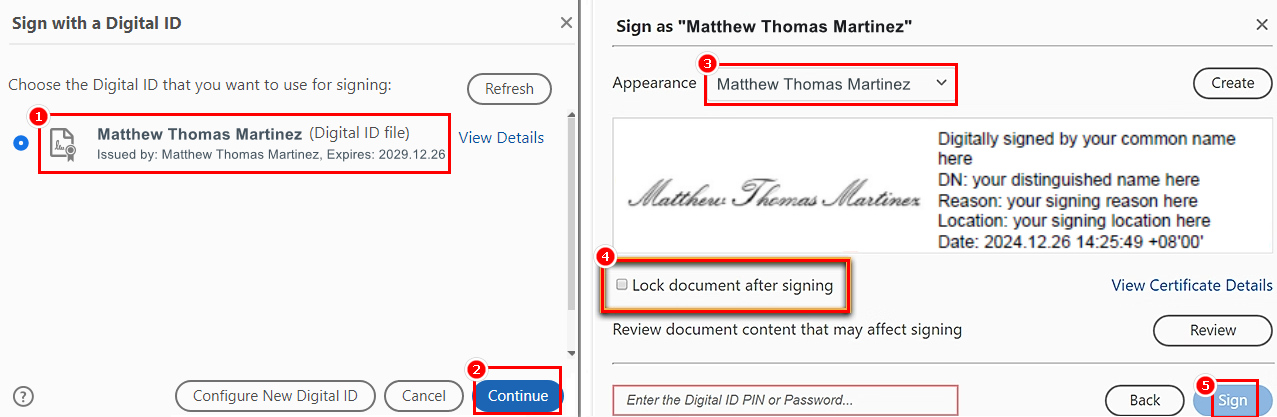
Add Digital Signature to PDF with Adobe Acrobat Extension
Are signatures added in Chrome legally binding?
Electronic signatures added through reputable services are generally considered legally binding in many jurisdictions.
Conclusion
That’s a wrap on how to sign a PDF in Chrome! In summary, you can use Chrome add-ons like Adobe Acrobat, or online editors such as PDFgear Online Signer.
We highly recommend PDFgear Online Signer—it’s completely free and offers exceptional value.
Plus, you can access advanced features like text editing and annotations at no cost. Discover endless possibilities with PDFgear’s online toolkits!
