How to White Out on PDF for Free

Summary :
This article shares 5 easy methods to white out or redact text/images in PDF using PDFgear’s free tools or Adobe Acrobat Reader.
Table of Contents
Using white-out or redacting helps you cover up errors like typos, outdated info, or something sensitive in a PDF file.
In the following, you’ll learn how to white out text and images in PDF on computers and mobile phones for free!
White Out on PDF Online for Free
PDFgear’s online editor is the best way to quickly white out text and images in PDF without software installation. It works right within your web browser.
PDFgear is free to use, you don’t need to sign up, and there’s no watermark in the output file.
Step 1. Go to PDFgear online PDF editor, and click Select PDF File to open the PDF.
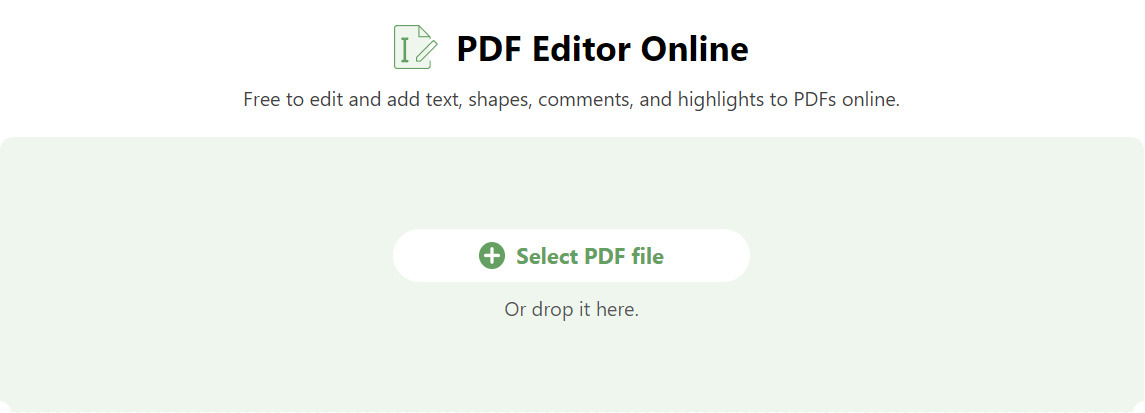
Select PDF file
Step 2. After the PDF is opened, go to the upper menubar, click on the Shapes button, and click Rectangle.
Click, hold, and drag your mouse to draw a rectangle to cover the unwanted text.
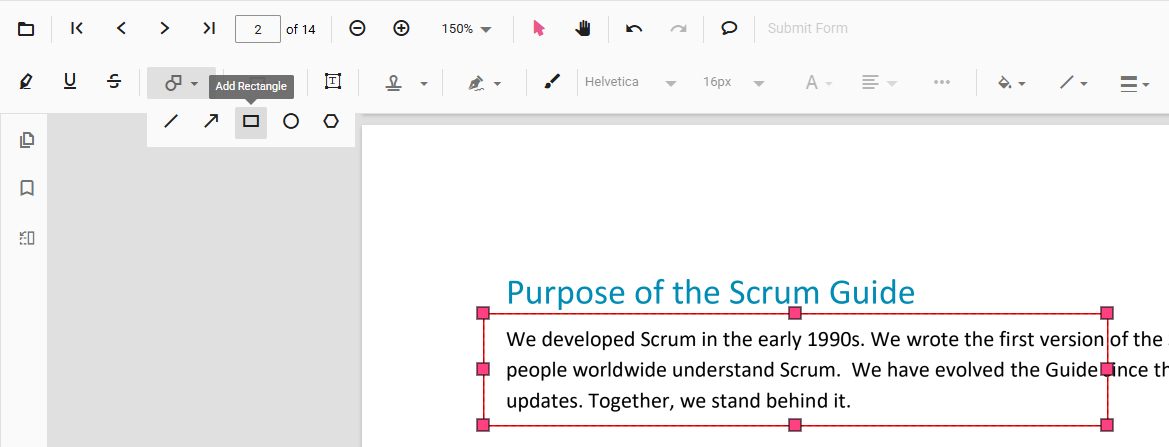
Click Rectangle
Step 3. On the upper menubar, click on the Change Color button and select the white color (or the background color of your PDF). Then Change Stroke Color to white as well.
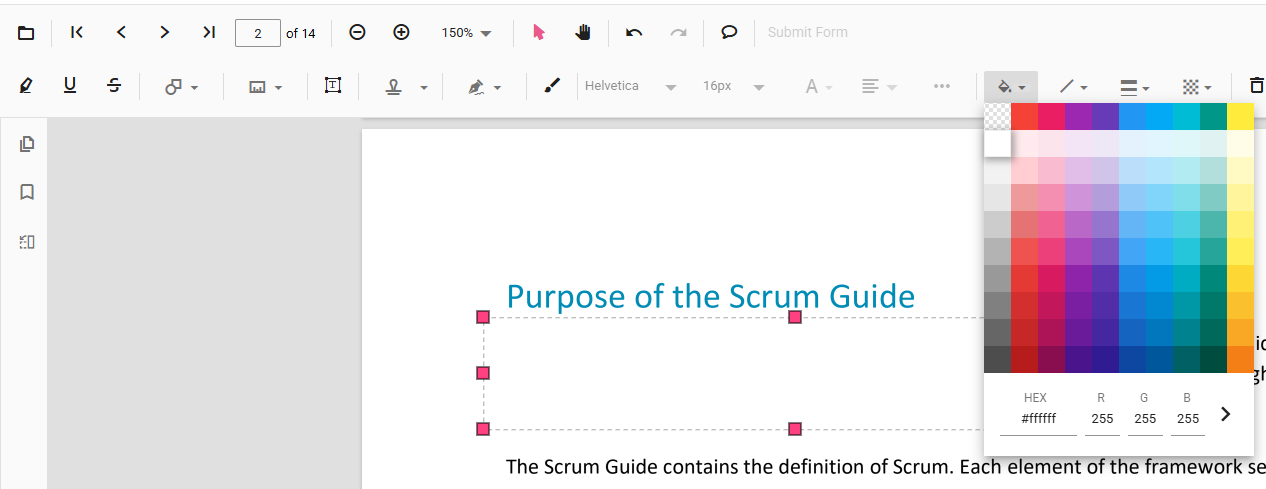
Change Color to White
Step 4. Then you’ve successfully whited out the text in PDF!
To save the PDF without the white-out history and make sure the white-out can’t be undone, click on the upper-right Print file button. Otherwise, use the Download file feature.
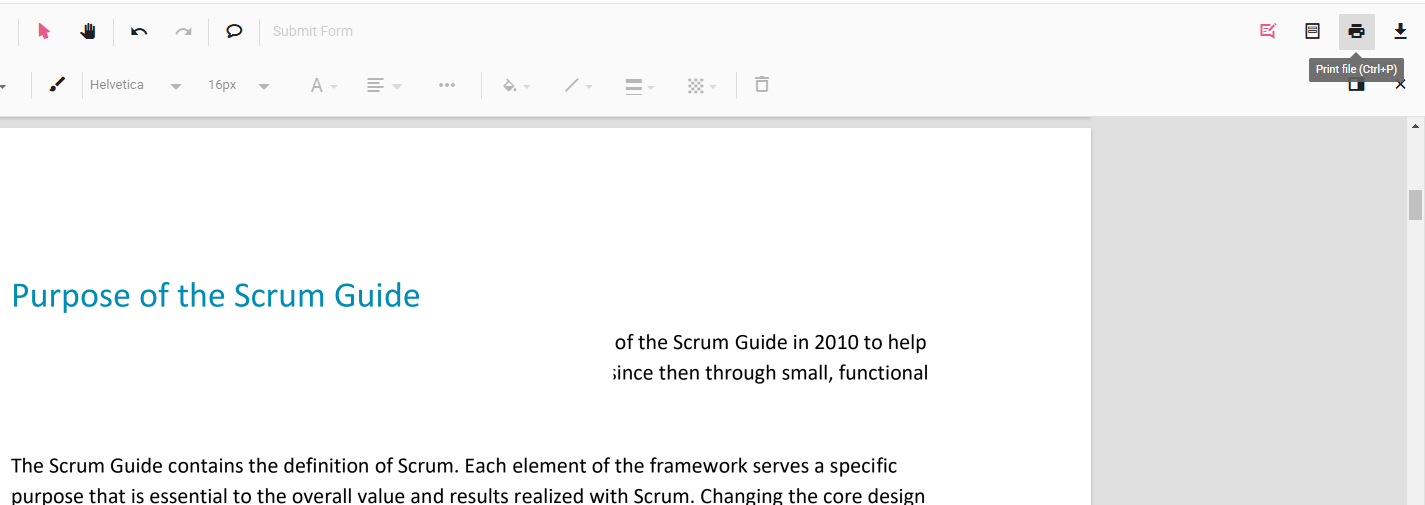
Print File
White Out and Delete PDF Text for Free
If you’re working with larger PDF files with a plethora of text or you’re looking for a more private way of working with sensitive information, then the PDFgear software is the choice.
Besides the white-out feature, PDFgear software also provides a powerful PDF text editor feature for you to delete PDF text without any trace.
Whiteout, blacken, or delete text or images in PDF for free, in a stable and private way.
Step 1. Download and install PDFgear on your computer, open the PDFgear program, and click Open File to open the PDF you need.
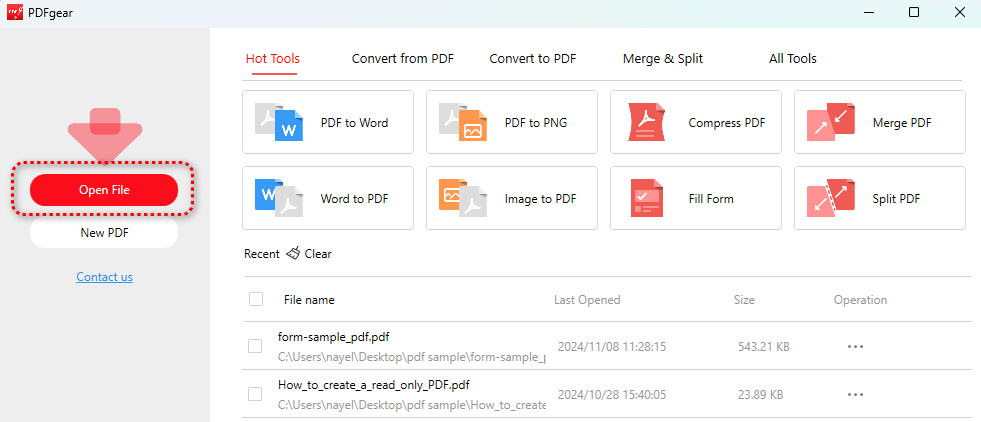
Open File
Step 2. Go to the Comment section and click on the Rectangle button. Then draw on the PDF to cover the unwanted part of the PDF with the rectangle.
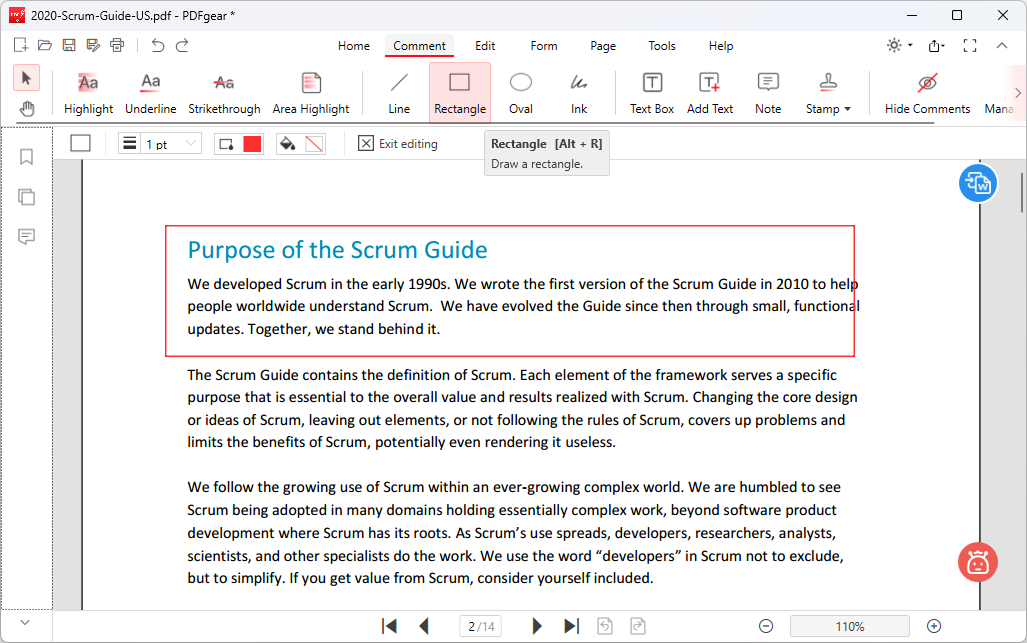
Draw Rectangle
Step 3. Click the Color and Fill Color from the upper ribbon and change them both to white.
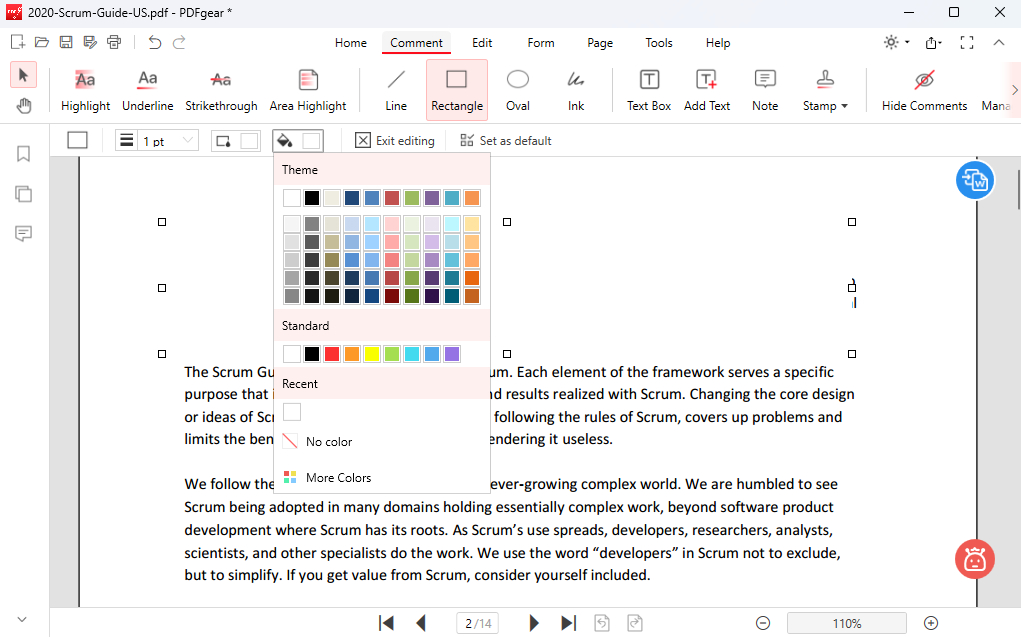
Change to White
Step 4 (Optional). PDFgear also allows you to remove text without whiting them out. Go to Edit > Edit Text, and you can instantly select PDF text and delete it.
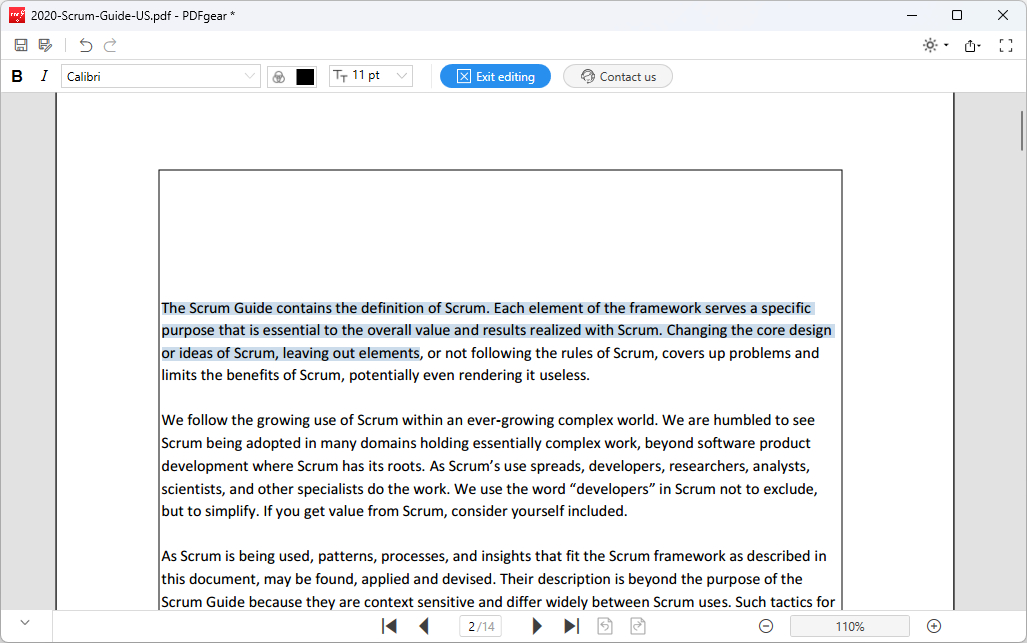
Delete Text
Step 5. When you’re done working, click the upper-left Save as or Print button to save the PDF with/without the white-out history.
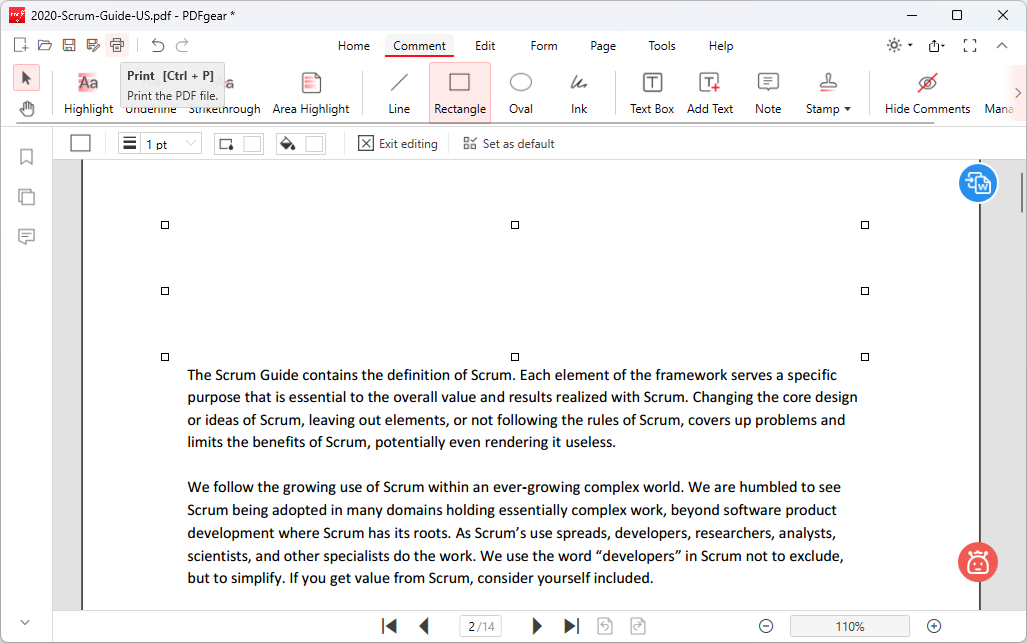
Print the PDF
White Out and Redact PDF Text on Mac for Free
The PDFgear Mac app lets you choose to white out or redact PDF text, depending on your needs.
The PDF redaction feature for you to redact PDF text to permanently remove it, making it impossible to recover.
PDFgear for Mac is also free to use. Now get it from Apple App Store.

Step 1. Download and install PDFgear on your Mac, open PDFgear app, and click Open File to open the PDF you need.
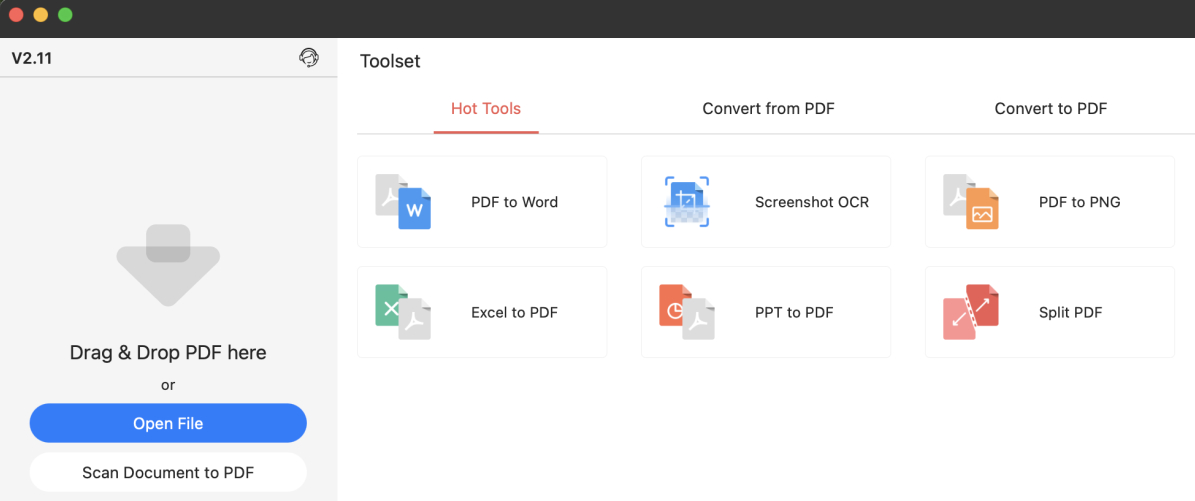
Open File
Step 2. Go to the Shapes toolbox, click Rectangle, and draw on the PDF to insert a rectangle shape to cover the unwanted text.
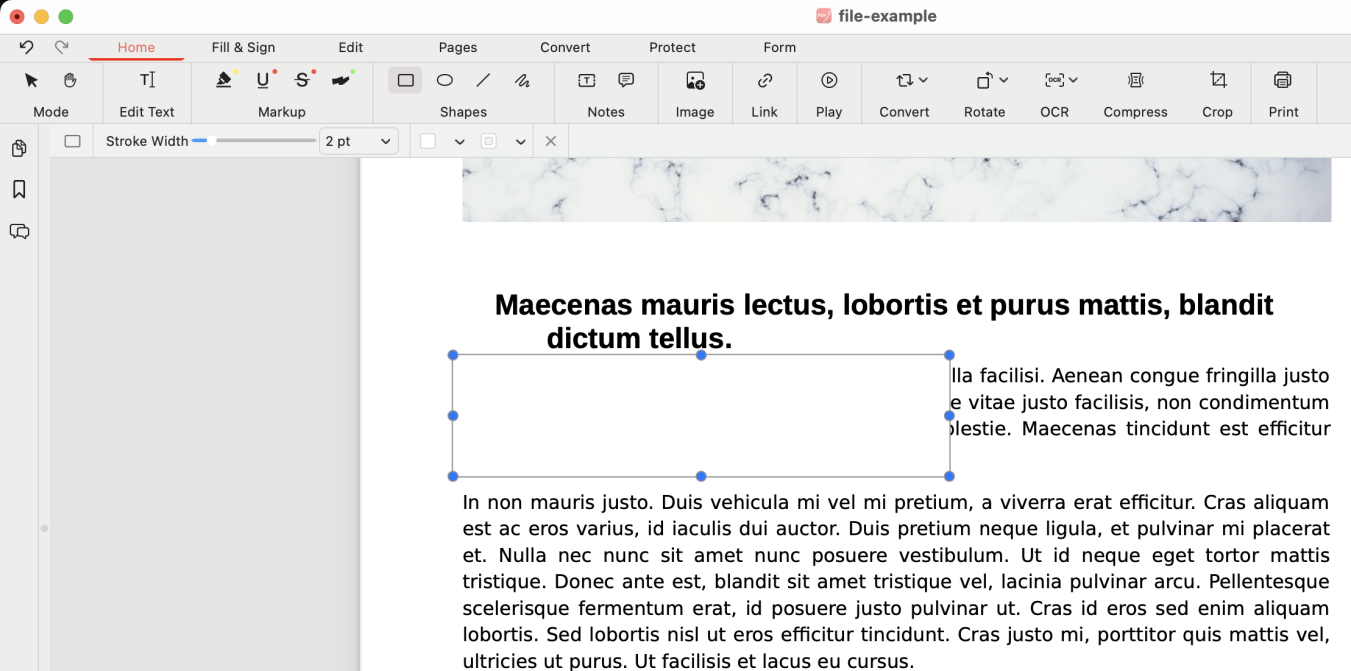
Draw Shape
Step 3. Use the color options from the upper ribbon to change both the Fill Color and Stroke Color to white.
After that, the text behind it will be whited out.
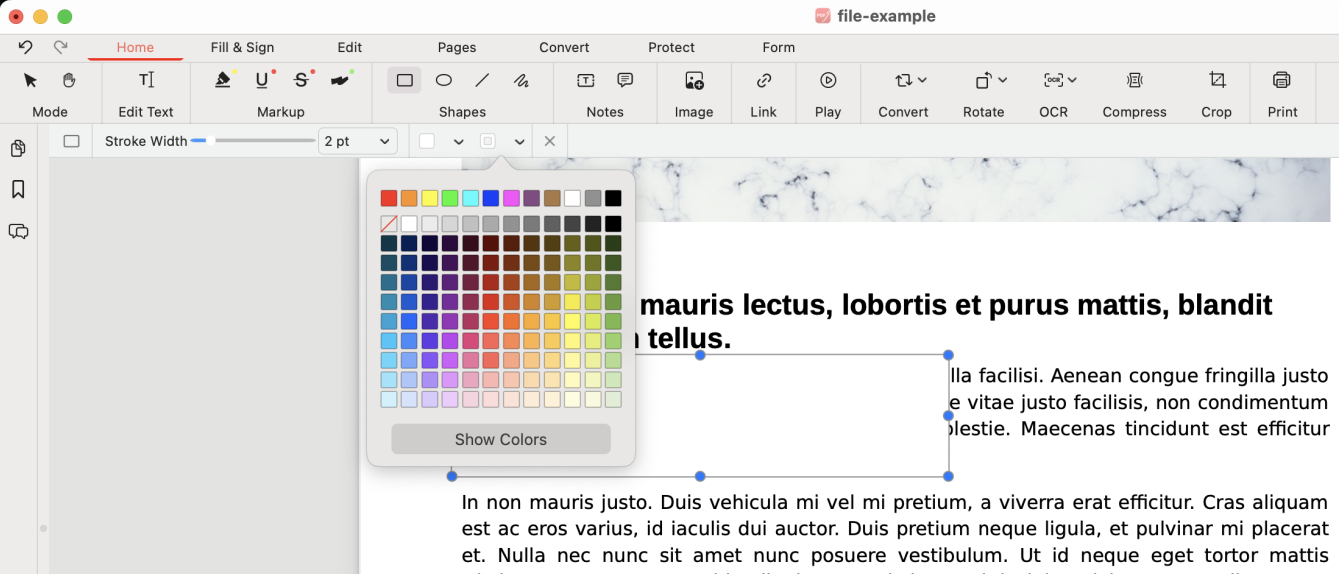
Change to White
Step 4. Alternatively, go to the Protect section and click the Redact option.
Select the unwanted text and it will be redacted and permanently removed after saving the file.
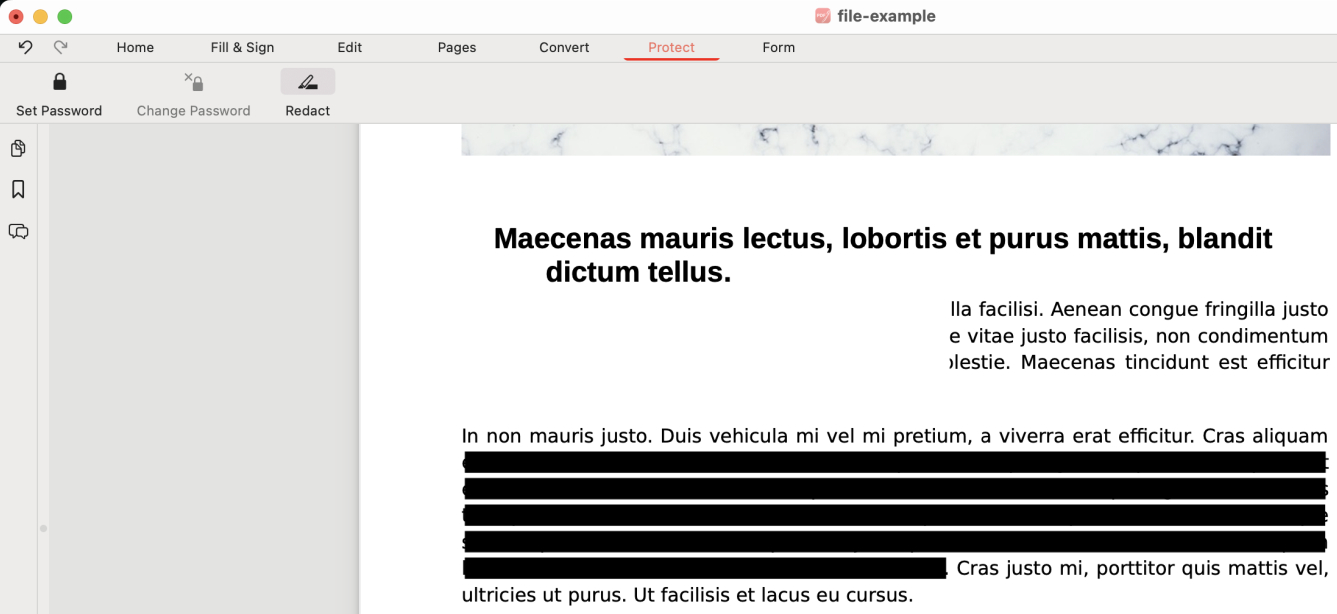
Redact Text
Step 5. Lastly, go to File > Save as to save the new PDF.
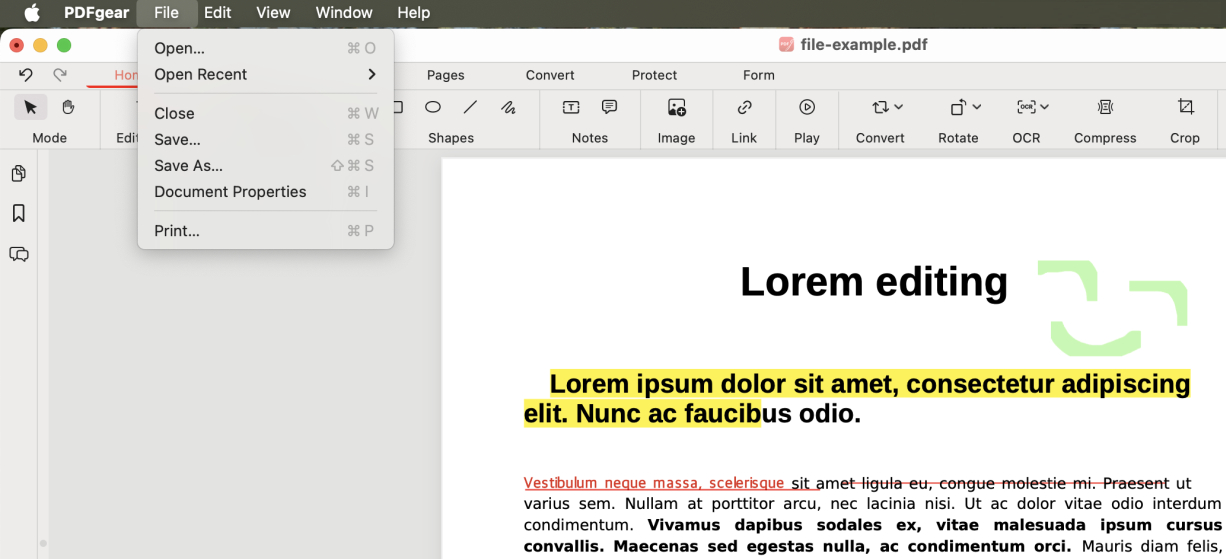
Save As
White Out on PDF on Mobile for Free
If you don’t have a computer at hand or want to white out on PDF on a mobile phone or tablet, PDFgear has also got you covered.
PDFgear mobile app allows you to white out text and images on iPhone and Android phones.
To get started, get the PDFgear app from the Apple App Store or Google Play for free.


Step 1. Open the PDFgear app on your phone, tap the lower-right Plus icon to add a PDF file, and tap on it in the Files list to open it.
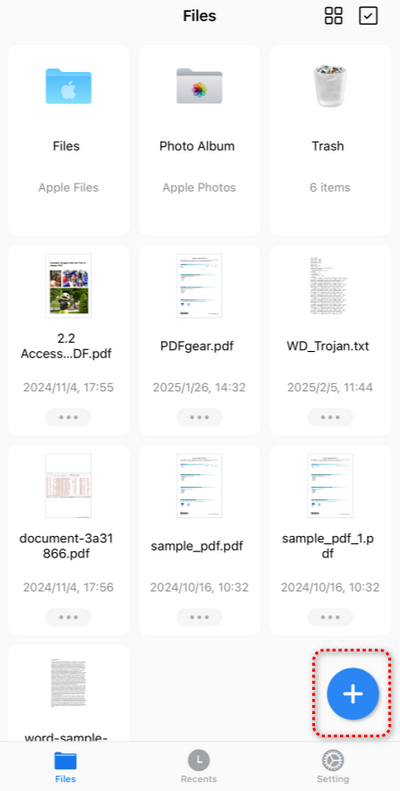
Tap Plus
Step 2. Once the PDF is opened, tap the upper-right Edit.
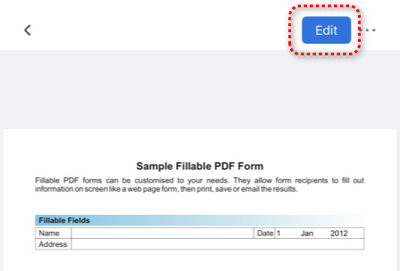
Tap Edit
Step 3. Tap the upper Shapes button and draw a rectangle that covers the unwanted text.
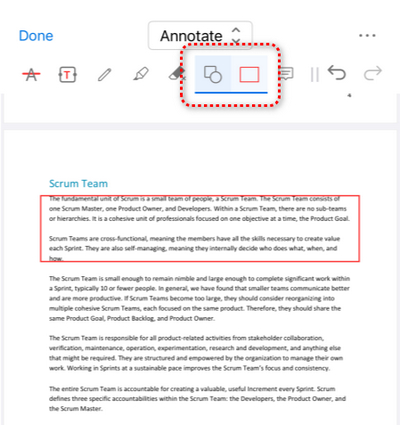
Draw Rectangle
Step 4. Tap on the inserted shape and tap Properties, then change both the Stroke Color and Fill Color to white.
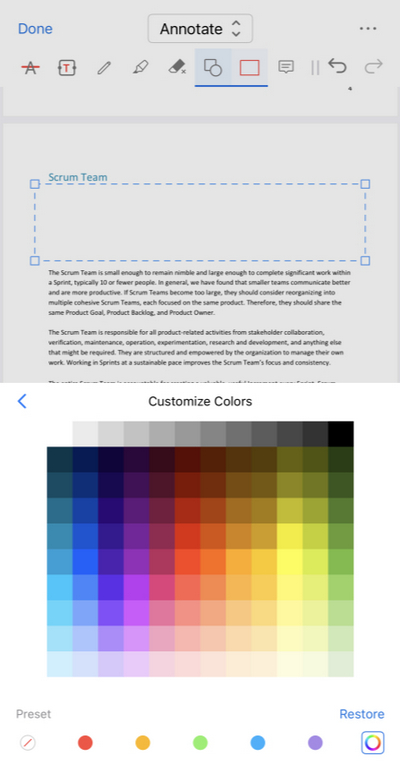
Change to White
Step 5. Once done, tap the upper-right triple dots button to save or share the PDF.
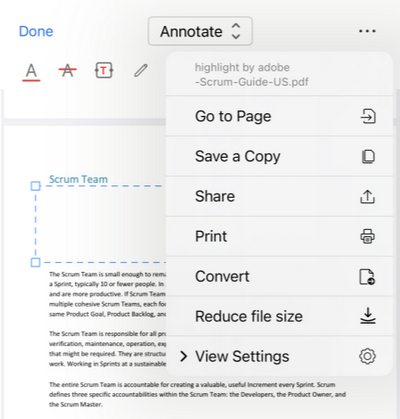
Save PDF
White Out on PDF Using Adobe Acrobat Reader
The free Adobe Acrobat Reader already allows you to white out on a PDF without the pro subscription.
If you’re already an Adobe user, check the steps below.
Step 1. Fire up Adobe Acrobat, go to Menu > Open to open the PDF.
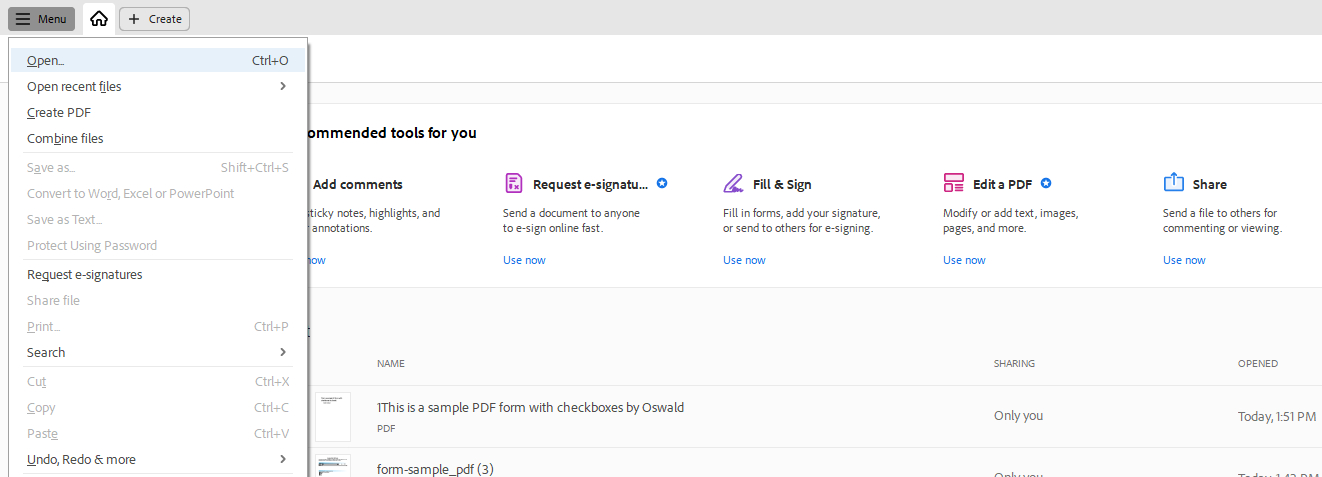
Open PDF
Step 2. On the left panel, click on the Free Drawing tool and select Rectangle. Draw on the PDF to insert the rectangle shape and cover the unnecessary text.
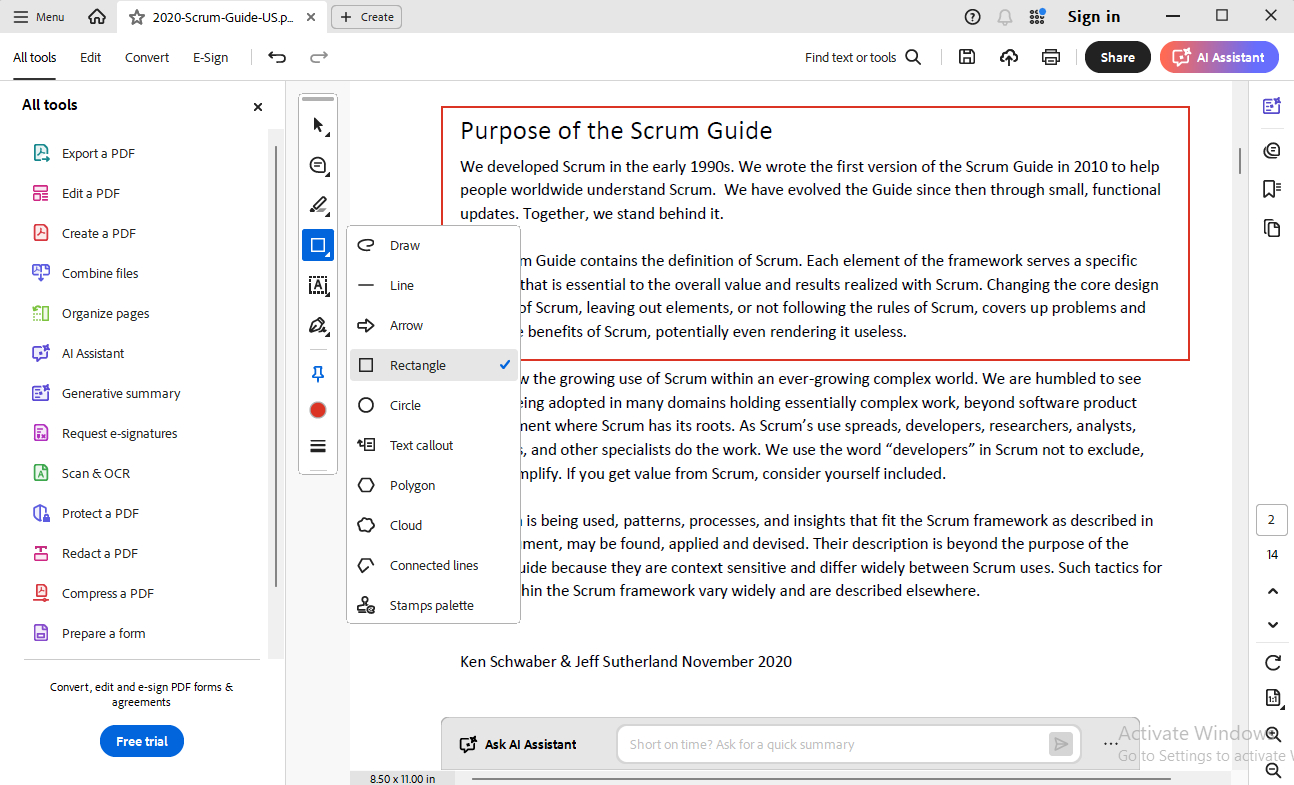
Add Rectangle
Step 3. Click on the rectangle and click the Color button to change the Fill/Stroke colors to white.
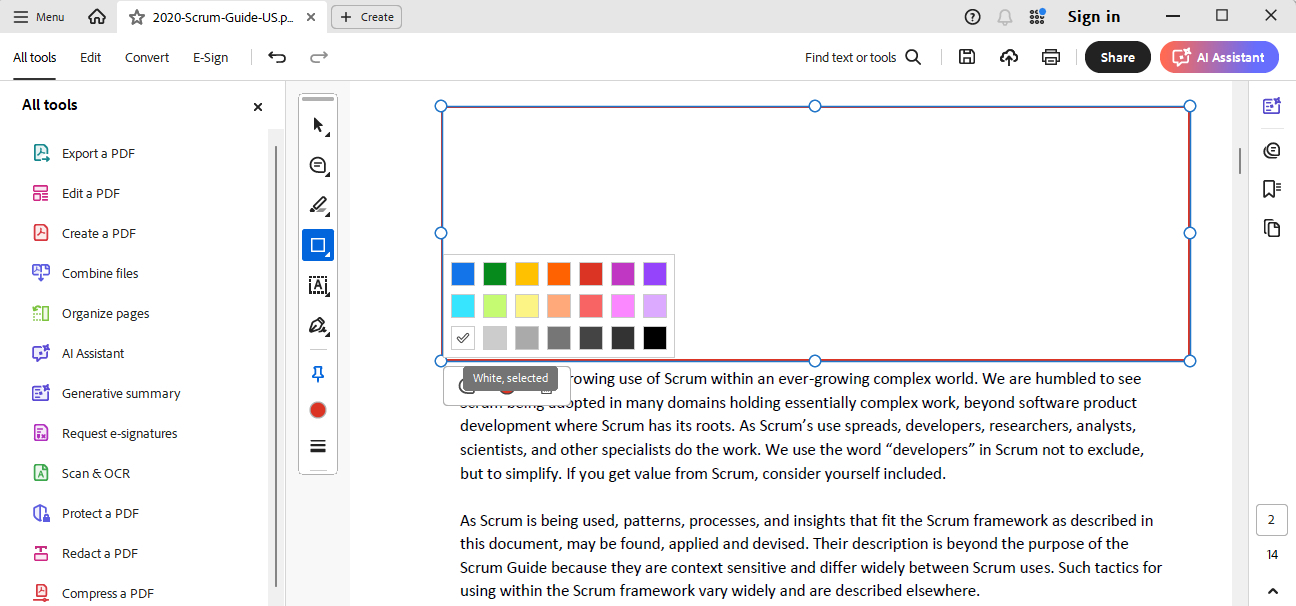
Change Color
Step 4. Go to Menu > Save as to save the PDF.
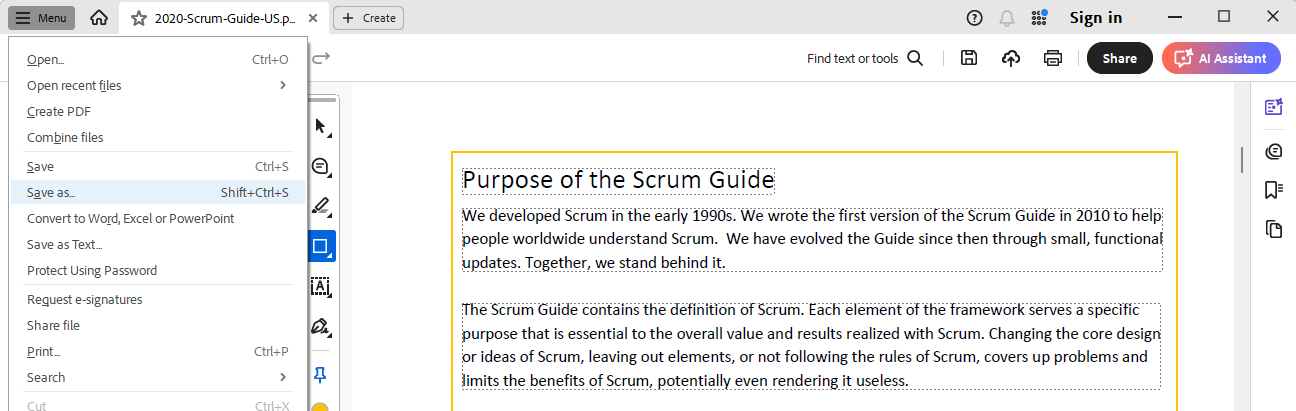
Save PDF
FAQs
Can whited-out information in a PDF be recovered?
The PDFgear whiteout process only involved placing a white box over the content, so the information can still be there and might be recoverable by simply moving or deleting the white overlay. For secure redaction, the information must be permanently removed from the document, not just covered up.
Can I white out text in a PDF using Preview on Mac?
Yes, you can use the Markup Toolbar in Preview to add a white rectangle or shape over the text you want to hide. However, this is not true redaction—the underlying text may still be accessible.
Can the PDF whiteout be reverted?
Yes, PDFgear keeps a record of the whiteout in the file’s comment history, and it can be reverted. Use the text redaction feature in PDFgear for Mac to make sure the removal can’t be undone.
What’s the difference between whiteout and redacting in PDFs?
Whiting out refers to simply covering up text or images, whereas redaction refers to the intentional removal or permanent destruction of sensitive data.
Redaction ensures that no one can recover the hidden content while whiting out may leave it accessible with the right tools.
Can I white out text in a scanned PDF?
Yes, you can white out text in a scanned PDF by adding a white annotation over the text. However, since a scanned PDF is essentially an image, the text isn’t there as editable text but as part of the image. You’ll need to cover it and then ensure that the image is flattened so that the original text cannot be uncovered.
