How to Accurately Convert PDFs to Excel with OCR

Summary :
No need to copy and paste any more. Let’s go through the three methods for quickly and accurately converting PDFs to Excel with OCR.
Table of Contents
Convert PDF to Excel with OCR
To make table adjustments in a PDF invoice or calculate numbers in a data report, you need to make a PDF searchable, and even better, convert it to an Excel.
Maintaining the original format or font can be tricky in a PDF-to-Excel conversion. Especially when it’s a scanned PDF, the layout usually gets distorted.
Forget the old ways of manually inputting the data into Excel, and embrace efficient OCR for PDF conversion. Your file can be transformed with high quality.
Don’t know how? Read the following guide to start OCR conversion quickly and for free.
Convert PDFs to Excel Using PDFgear OCR
PDFgear is a free PDF editor with comprehensive features. If you don’t want any installation, its online PDF-to-Excel converter suits you well, offering fast file processing and no sign-up.
The OCR technology of PDFgear enables a precise scan of the texts, data, and images in a PDF. Meanwhile, it outputs a spreadsheet with the original formatting, and even the background color of the table is kept.
Want to have a try? Let’s hit it!
Step 1. Get to PDFgear Online PDF to Excel Converter
Navigate to PDFgear online Converter. Drag or select a PDF file from your device to the converter box.
The conversion begins upon the file upload, and based on file size and Internet speed, it takes only a few seconds in most cases to get the file converted.
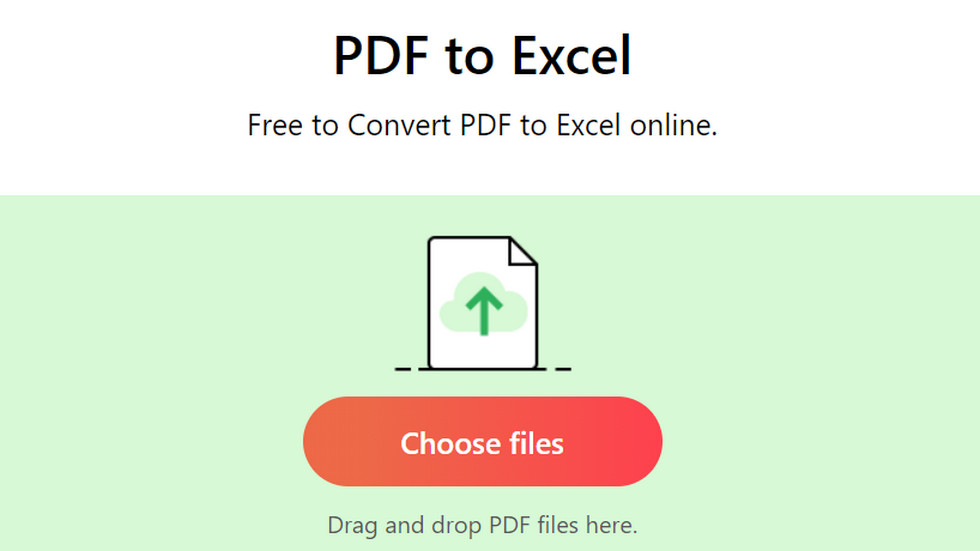
Add a File to PDFgear PDF-to-Excel Online Converter
Step 2: Download the Excel File
Now press Download and get the Excel. You can save the file to your device.
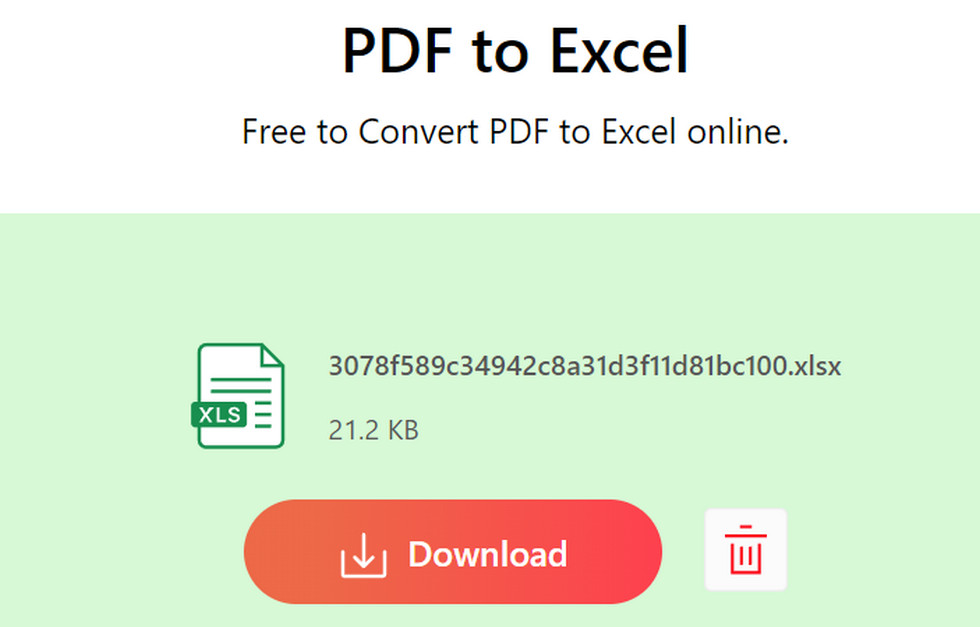
Download the Excel from PDFgear Online Converter
Easy peasy, right?
To make a PDF searchable, different types of PDF conversion are offered in PDFgear, including PDF to Excel, PDF to Word, and PDF to PPT.
The performance of online tools varies on the Internet condition, so if you’re struggling with large or multiple PDF file converting issues, PDFgear software is a great option as it can deal with batch conversion, and greatly saves your time!
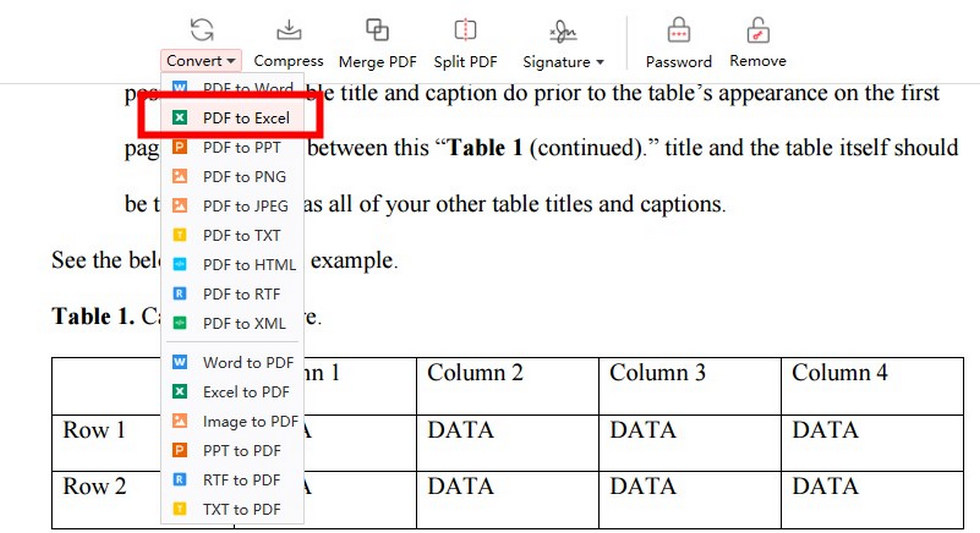
Convert PDF to Excel with OCR in PDFgear
This software is also free to use. Plus, it enables selected-pages transformation, which is more flexible for data extraction and comes out with a smaller file size.
If you want to convert a scanned PDF, don’t worry. PDFgear’s OCR feature can help extract the content and transfer it to Excel.
Popular Methods to Turn PDF into Excel
The PDFgear’s online OCR converter covers most of your PDF to Excel conversion needs while charging nothing and requiring no email.
But if you don’t mind signing up for Adobe Acrobat or already have a Microsoft account, the ways below also show you how to change a PDF to Excel with no quality compromise using Adobe online tools and Microsoft 365.
Adobe Acrobat Online PDF-to-Excel Converter
As a publicly known PDF solution, Adobe Acrobat offers online services containing multiple PDF converters. The OCR used in Adobe Acrobat can extract data quickly from “true” or scanned files while maintaining the original formatting.
Follow the steps below to get started.
Get into Adobe Acrobat online tools> Upload a PDF to the converter> Download the Excel
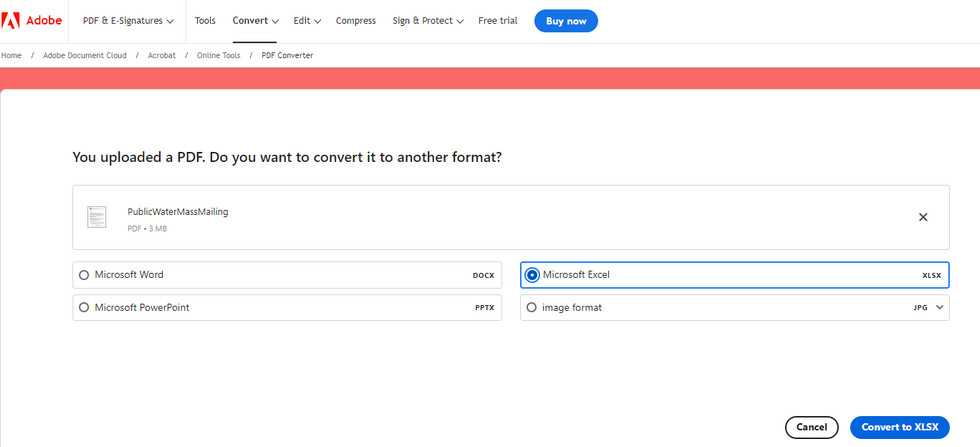
Convert a PDF to Excel in Adobe Acrobat Online
Now you’ve got the Excel file. While this PDF-to-Excel converter is free, you can notice some limitations here: Only one conversion is allowed every 30 days and a sign-in is necessary. And there may be a better alternative already on your device.
Convert a PDF to Excel in Microsoft 365
We are all familiar with Microsoft 365. It provides several office apps such as Word, Excel, and PowerPoint.
Unlike using PDFgear or Adobe Acrobat online converters, it feels more like importing PDFs in Microsoft 365 Excel:
- Create a blank Excel file > Data > Get Data > From PDF
- Pick the PDF you want to convert > Load
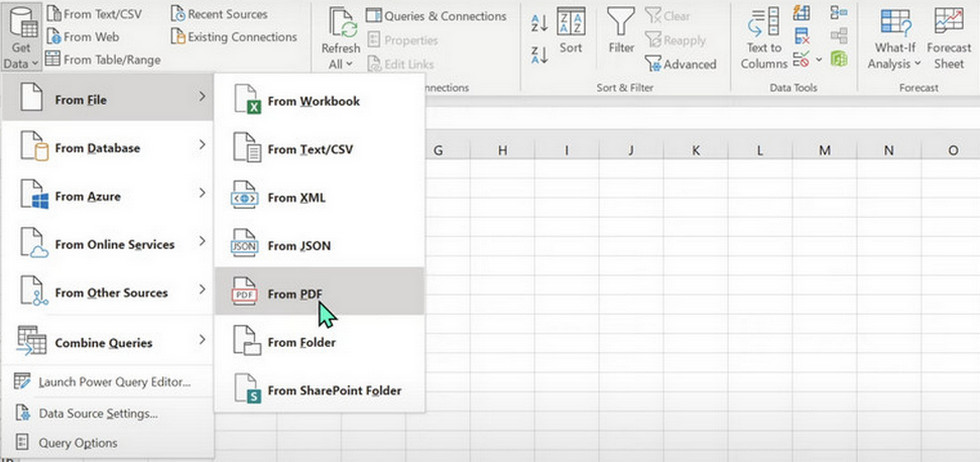
Convert a PDF to Excel in Microsoft Excel
Now you can make further editions in Excel.
While being less expensive than Adobe Acrobat, Microsoft 365 still bills almost $70/year for personal use. So if you have purchased this deluxe software on your PC or phone, do not waste it.
Whether it’s PDFgear, Adobe Acrobat, or Microsoft Excel, all are equipped with advanced OCR technology for high-quality file transformation. And if you’re looking for a more streamlined and cost-effective tool, PDFgear is worth trying most.
About OCR a PDF to Excel, there may be more you wanna know. Read below and find your answers.
FAQs
What’s the accuracy of OCR in converting PDF tables to Excel?
The accuracy of OCR in PDF tables to Excel conversion depends on the original file quality and complexity.
The output content is better when the text, data, and font of PDF tables are clear or when the table is well-structured with a simple and concise layout.
Are there free OCR tools for PDF to Excel conversion?
Yes, as mentioned in the first part of this post, PDFgear’s online PDF-to-Excel converter is completely free to use with no limit or watermarks. This tool uses OCR to grab content from a PDF, ensuring maintained formatting during the conversion.
What is the AI tool for converting PDF to Excel?
Besides OCR, AI is being used in PDF conversion. PDFgear is integrated with GPT-3.5 API that allows you to convert PDFs to Excel by chatting with your file. Simply type the conversion requirement in PDFgear Copilot to ask AI to convert your file and you’ll get the file transformed.
Conclusion
To convert a PDF to Excel, this post covers three easy and professional methods for online or software use. If you prefer a free option, PDFgear’s online OCR converter is for you. It’s simple to operate and requires no sign-up. The exported Excel file also maintains clarity without any formatting loss.
