How to Hide Text in a PDF with 2 Efficient Methods

Summary :
With an easy-to-understand PDF editing tool, a new door will open for you to deal with various PDF editing problems. This article will introduce a handy tool and how you can use it to hide text in a PDF.
Table of Contents
How to Hide Text in a PDF
Hiding text in a PDF is often necessary to remove sensitive or confidential information before sharing the document publicly. Various software may be used to hide text in a PDF file. Adobe Acrobat and PDFgear are two well-liked tools. For concealing text in PDFs, user-friendly interfaces are offered by both Acrobat and PDFgear.
Now let’s start with the free method, PDFgear.
👉 To save time, you can directly download PDFgear right now!
How to Hide Text with a Free PDF Editor
PDFgear is a free PDF editor that allows you to black out text in PDF to hide sensitive information, which can be easily done with simple clicks. Additionally, the best part of PDFgear is that it’s free to use.
Free to white out or blacken PDF text in simple clicks. It’s free to use and there’s no watermark.
It also provides other practical PDF features such as PDF encryption, PDF markup, PDF annotation, etc.
To get started, get PDFgear on your device, it works on Windows, Mac, and iOS. And as mentioned, it’s free to use!
Step 1. Download, install, and open PDFgear software on your device.
Step 2. Click the Open File button to import the PDF you need to work with.
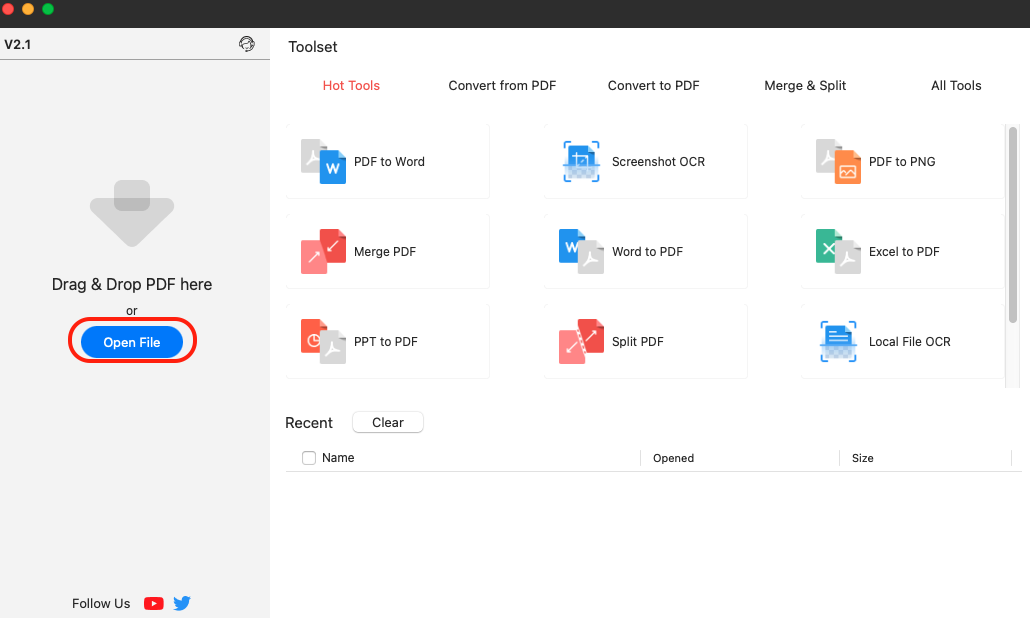
Open PDF File
Step 3. Go to the Annotate section and choose the Rectangle shape, then drag and hold to place it on the text you need to hide.
Step 4. Click the Fill tool from the upper toolbar and select a color to fill the shape with that color, that’ll help cover the text.
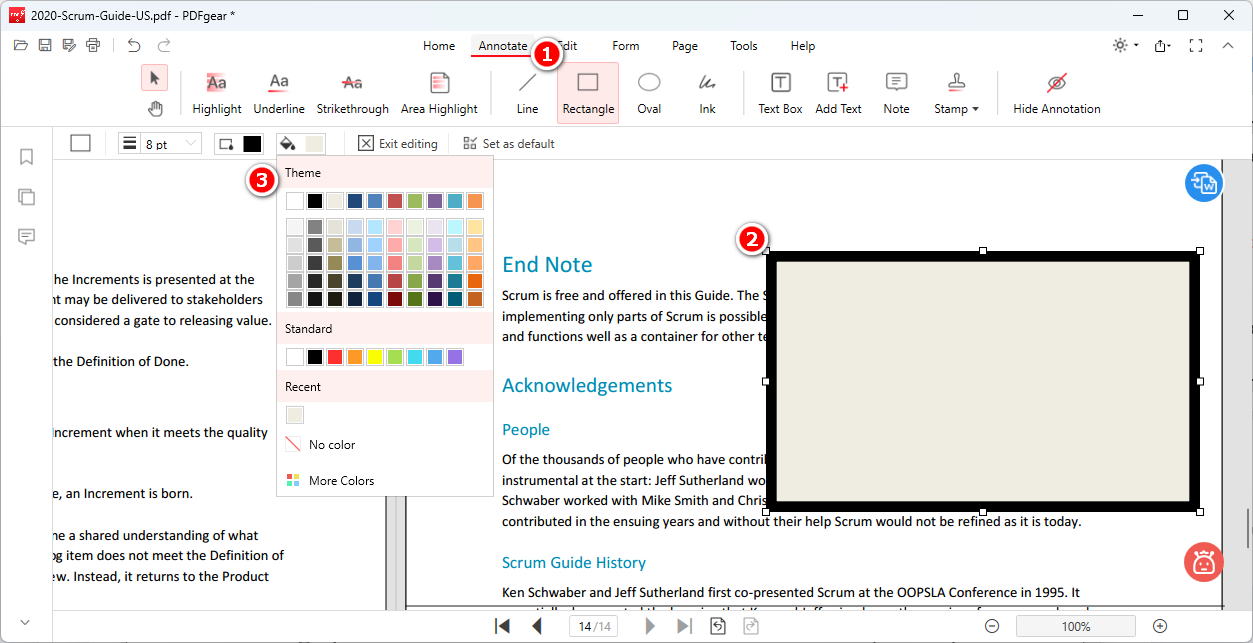
Hide Text in PDF
Step 5. Lastly, hit the upper-left Save button to save your changes.
How to Hide Text to a PDF in Adobe Acrobat
Adobe Acrobat is the go-to tool for redacting text in PDFs because of its powerful redaction capabilities. Both on Windows and MacOS, it provides precise control to permanently black out text behind customizable boxes.
As the industry standard for PDF editing, Acrobat is widely trusted and has advanced functionality to thoroughly sanitize hidden sensitive data, which is crucial when sharing redacted documents publicly.
Besides redaction, it also enables other methods including overlaying white boxes, using white highlighter, using an eraser tool, and applying white font. Here is how:
Step 1. Download Adobe Acrobat > Make sure you have login and subscribed > Open your file with Adobe Acrobat
Step 2. Go to “Tools” > Choose “Redact”.
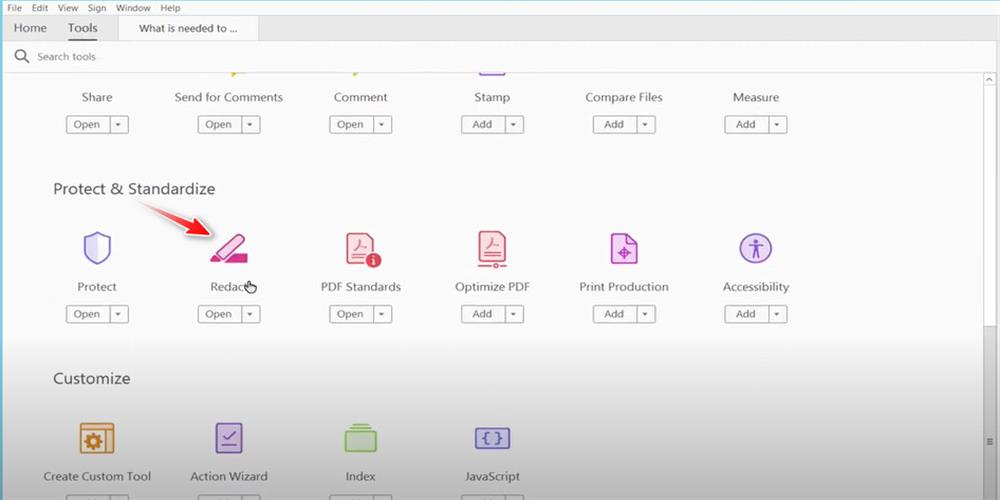
Proceed Redaction in Adobe
Step 3. Click “Redact Text & Image” > Choose from the dropdown menu > Click “Properties” > Choose a color you like to use for hiding text.
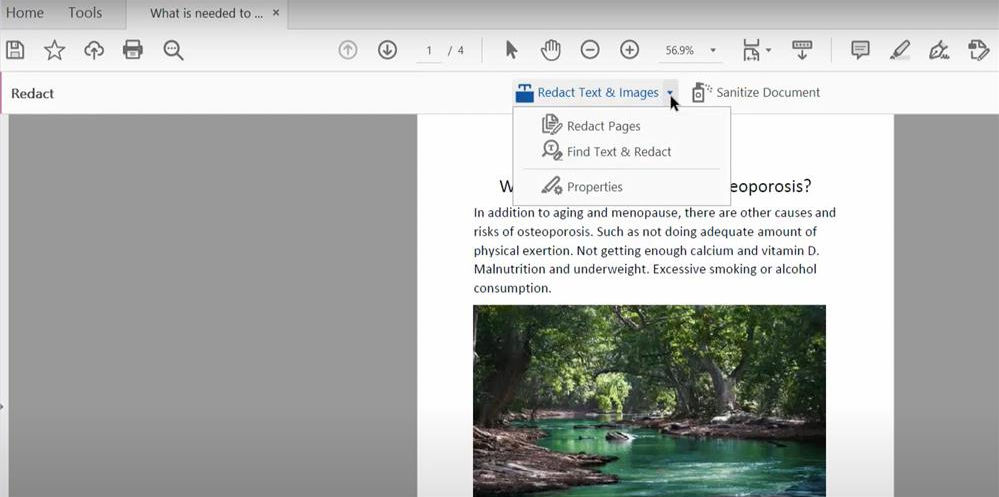
Choose a Color for Hiding Text
Step 4. Select the text or image in the PDF, click the “Apply” button, and it automatically gets hidden with a strip of the color you choose in the last steps. Don’t forget to save your redaction.
Adobe Acrobat provides a wide variety of solutions for redacting sensitive information in PDF documents. However, it is a piece of expensive paid software and its redaction features permanently remove text in a way that cannot be recovered later.
As an alternative, there are free PDF editors like PDFgear that offer full functionality for hiding text, with the benefit of small file size and light resource usage.
How to Hide Text to a PDF Free
PDFgear is a free PDF editing tool that can help you hide text in a PDF in various ways. Besides blacking out text in a PDF, we recommend three other ways in this part and you can select the most suitable one to do your work. If you make any mistake in the redaction, you can always go back to where you were. It offers you ways to edit PDFs on Windows and MacOS.
Step 1. Download PDFgear and open it > Click “Open File” > Select the PDF file in which you want to hide text.
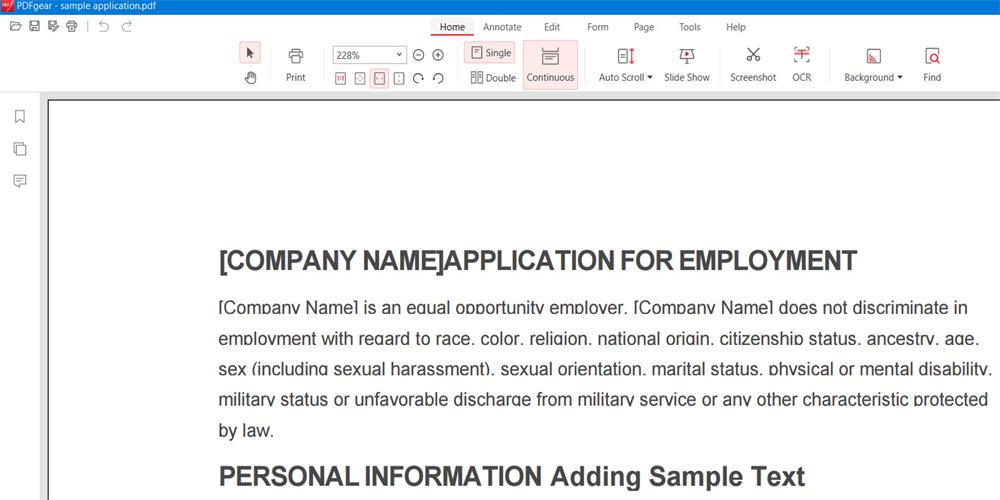
Open PDF with PDFgear
Step 2. There are 4 ways to hide text in PDF with PDFgear.
Method 1. Use Text Box
Go to “Annotate” > Click “Text Box” > Place the text box to the text that you want to hide > Change the fill color to either white or match it with the background color of the PDF.
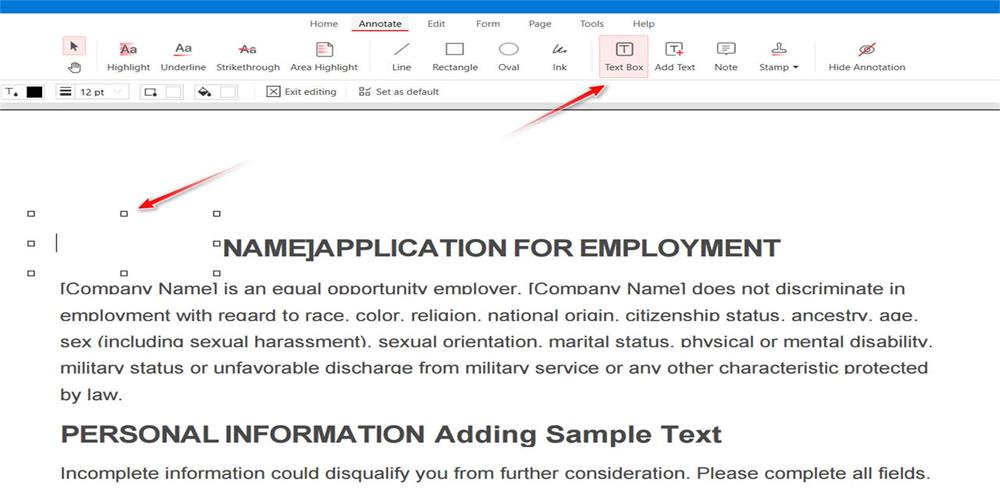
Place a Text Box
Method 2. Use an Image
Hit “Edit” > Choose “Add Image” > Find an image you can use to hide text > Insert the image and adjust its location and size.
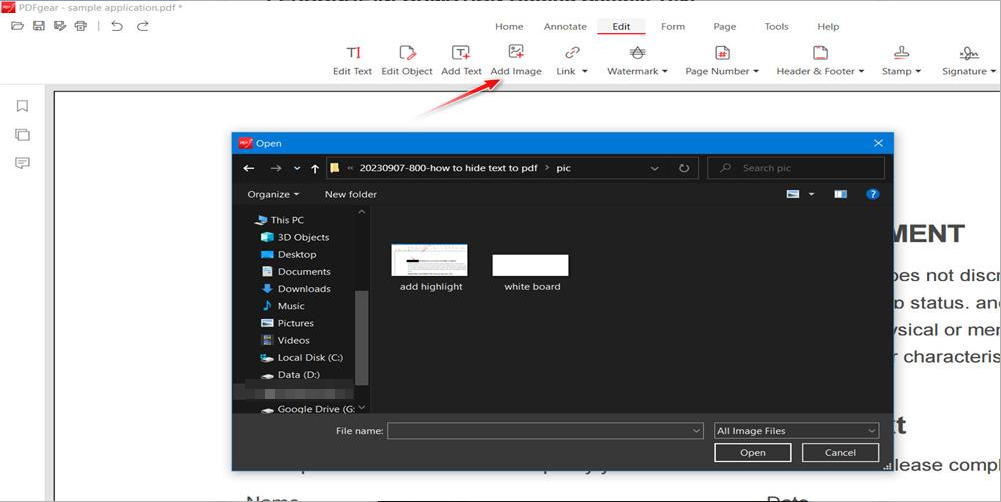
Choose an Image and Insert
Method 3. Use Highlighter
Click “Annotate” > Select the text you don’t want to show in the PDF > Click “Area Highlight” > Change the color of the highlighter.
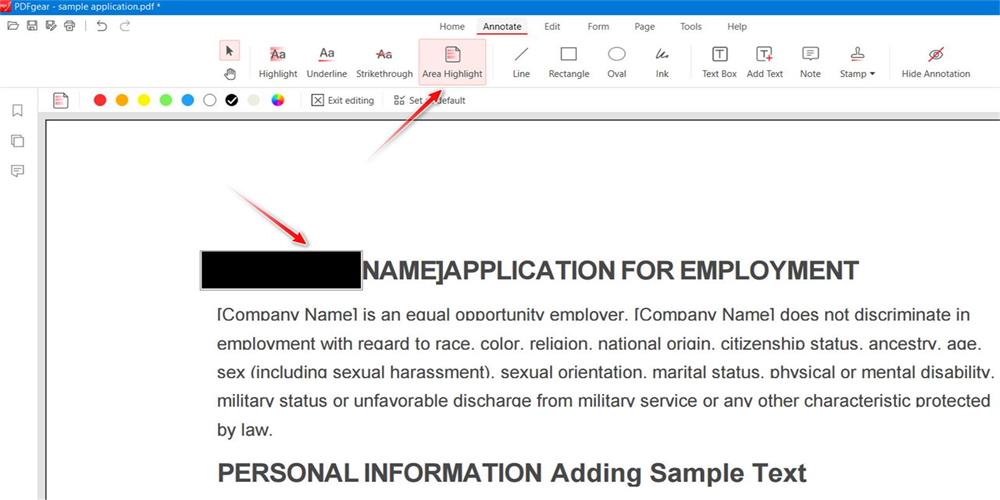
Set Highlighter on the Text
Method 4. Change Font Color
Go to “Edit” > Click “Edit Text” > select the text that needs hiding > Change the color of the font to white or whichever color can blend into the background color of the PDF.
In this editing mode, you even can delete the existing text in your PDF directly.
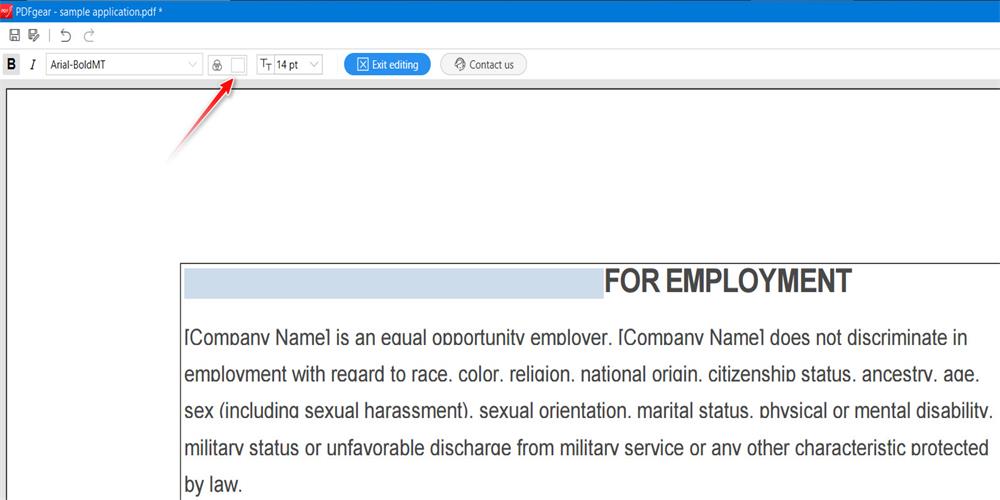
Change Color of Font
FAQs
How Can I Hide Text in a PDF for Free?
You can use free online PDF redaction tools like PDFgear Online to add a shape over areas you want to redact. Just place the shape on the text you want hidden, change the color of the shape, and your text is concealed just like that.
How Do I Hide Words in a PDF Document?
Open the PDF in Adobe Acrobat > Go to the Tools menu > Select the words you want to hide > Go to the Redact menu > Select Apply Redactions. The highlighted text will now be hidden behind black boxes in the PDF. Save the edited file to retain the redactions.
How Do I Black Out Text in PDF Preview?
Open the PDF in Preview > Select the Markup toolbar > Click the Rectangle tool > Draw a rectangle over the text you want to redact > Right-click the rectangle > Select Fill Color – Black > Adjust the rectangle to cover the text fully > Save the PDF to retain the blacked-out redactions.
Can I Blur Text in a PDF?
Yes, you can blur text in a PDF to make it unreadable with Adobe Acrobat. Open your PDF file in Adobe Acrobat > Click on the “Edit PDF” tool in the right pane > Select the “Redact” option from the menu > Drag to draw rectangles over the text you want to blur > Adjust the markup opacity slider to maximum to completely obscure the text > Click ‘Apply’ to blur the marked text > Save the changes to the PDF.
Conclusion
There are a variety of effective techniques to hide or remove text in a PDF document. The best approach depends on your specific needs – whether you want to permanently delete text or visually obscure it behind black boxes or blurred areas. Free PDF edit tools like PDFgear provide the simplest tools to add redaction boxes over text. By leveraging PDF editing tools, you can selectively conceal confidential or sensitive information before sharing the document publicly.
