How to Add CAC Signature to PDF

Summary :
Learn the step-by-step process to add a Common Access Card (CAC) signature to a PDF using Adobe Acrobat Pro DC for secure and authenticated signing.
Table of Contents
Before you get to the detailed steps on how to add a CAC signature to a PDF, please ensure you have prepared the following things well.
- A CAC, PIN, and smart card reader set up.
- Your digital certificates are installed and up-to-date on your trusted device.
- A necessary software, here we recommend Adobe Acrobat Pro DC or Outlook, has been installed and is compatible with CAC signing.
- Root certificates and middleware software are configured on your computer.
- Confirm your CAC signature works properly.
This guide will walk you through the steps to add a CAC signature to a PDF using Adobe Acrobat Pro DC, helping you maintain document integrity and compliance.
How to CAC Sign on Adobe Acrobat Pro DC
Adobe Acrobat Pro DC provides a powerful solution for individuals and organizations to securely sign and authenticate documents using digital signatures, particularly with the Common Access Card (CAC).
This is particularly well-suited for situations where authenticity and authentication are required, such as in government environments. Let’s dive right in.
Start by opening your PDF in Adobe Acrobat Pro DC. Ensure your document is final and ready for signing.
Step 1. Access the Tools Menu
Click on the ‘Tools’ tab to find various options. From here, select ‘Certificates’ to manage digital signatures.
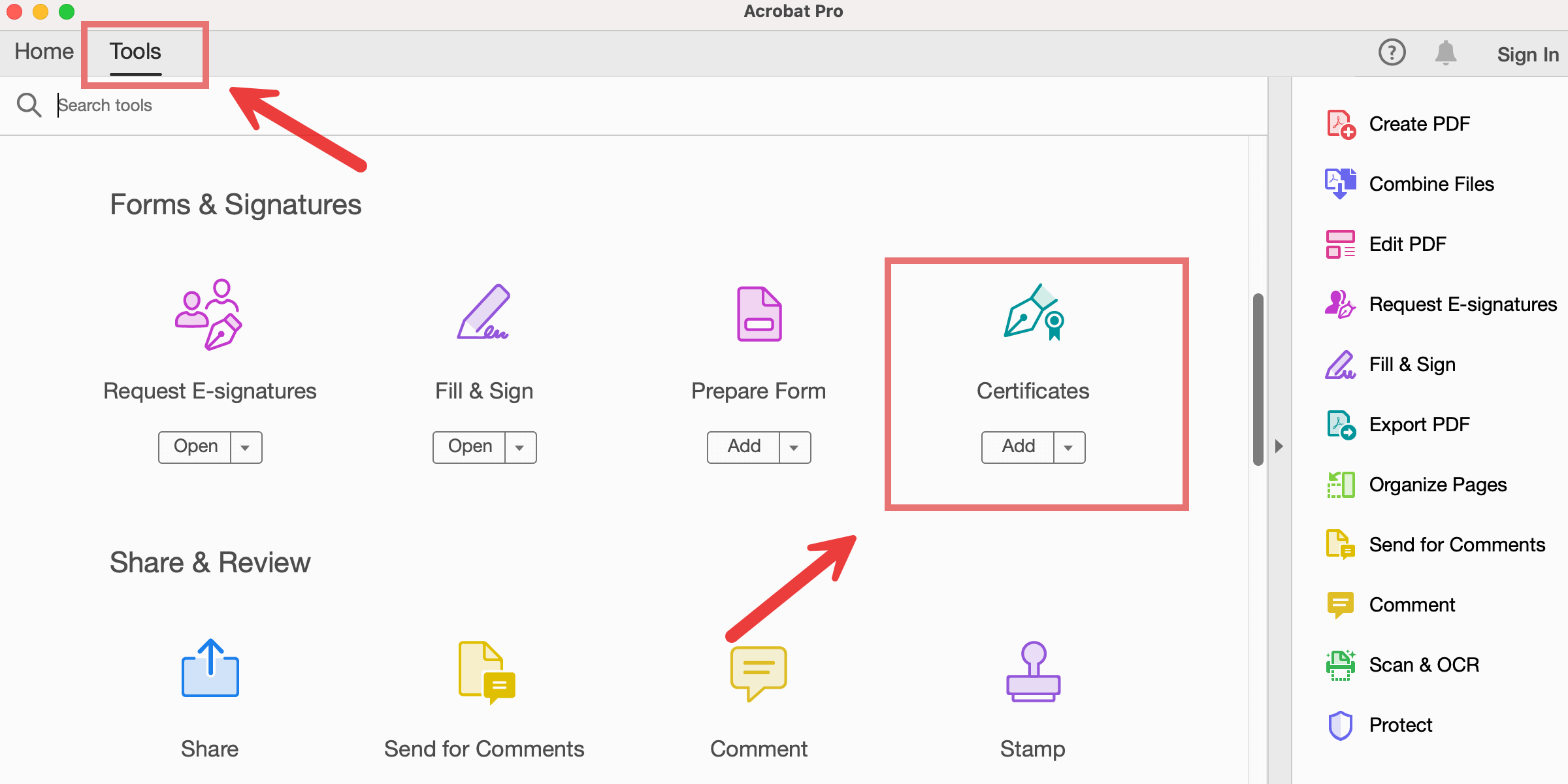
Choose Certificate in Acrobat
Step 2. Open the Certificates Toolbar
Within the ‘Certificates’ option, choose ‘Digitally Sign’.
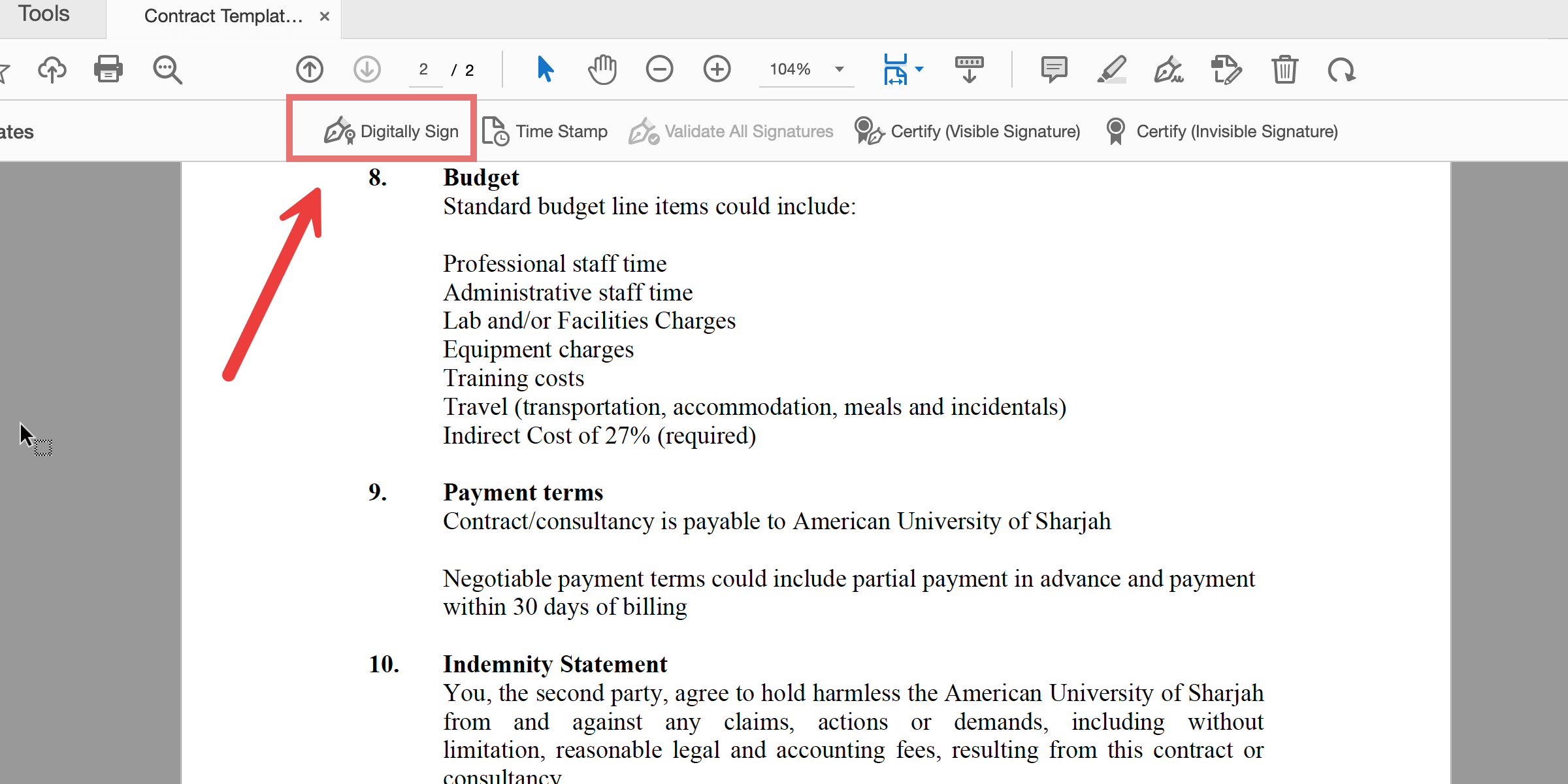
Choose Digitally Sign in Acrobat
Step 3. Select Region
Select the area in the PDF where you wish to insert the CAC signature.
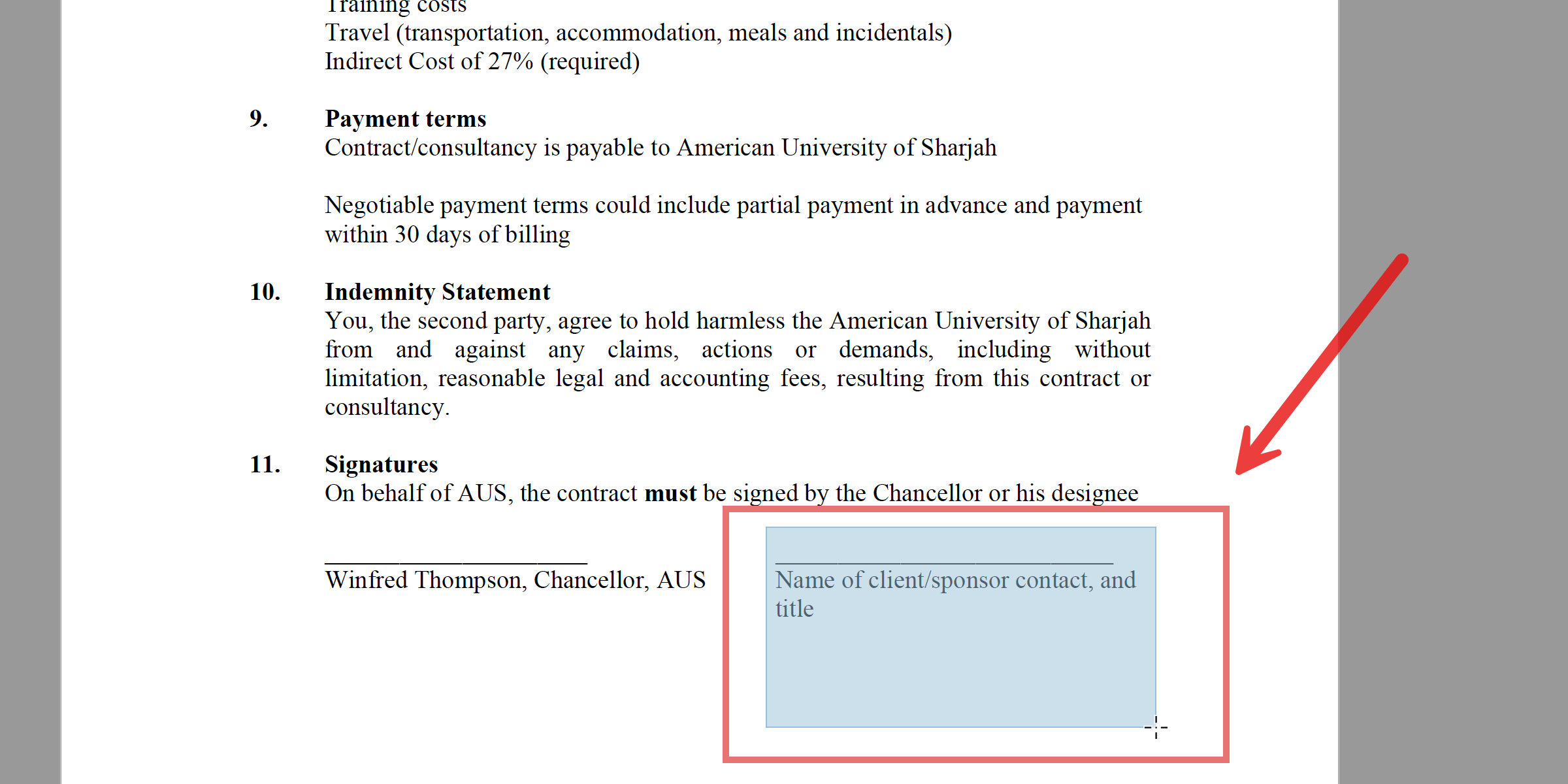
Select Region in Acrobat
Step 4. Configure Your CAC Certificate
A prompt will appear asking you to configure your digital ID.
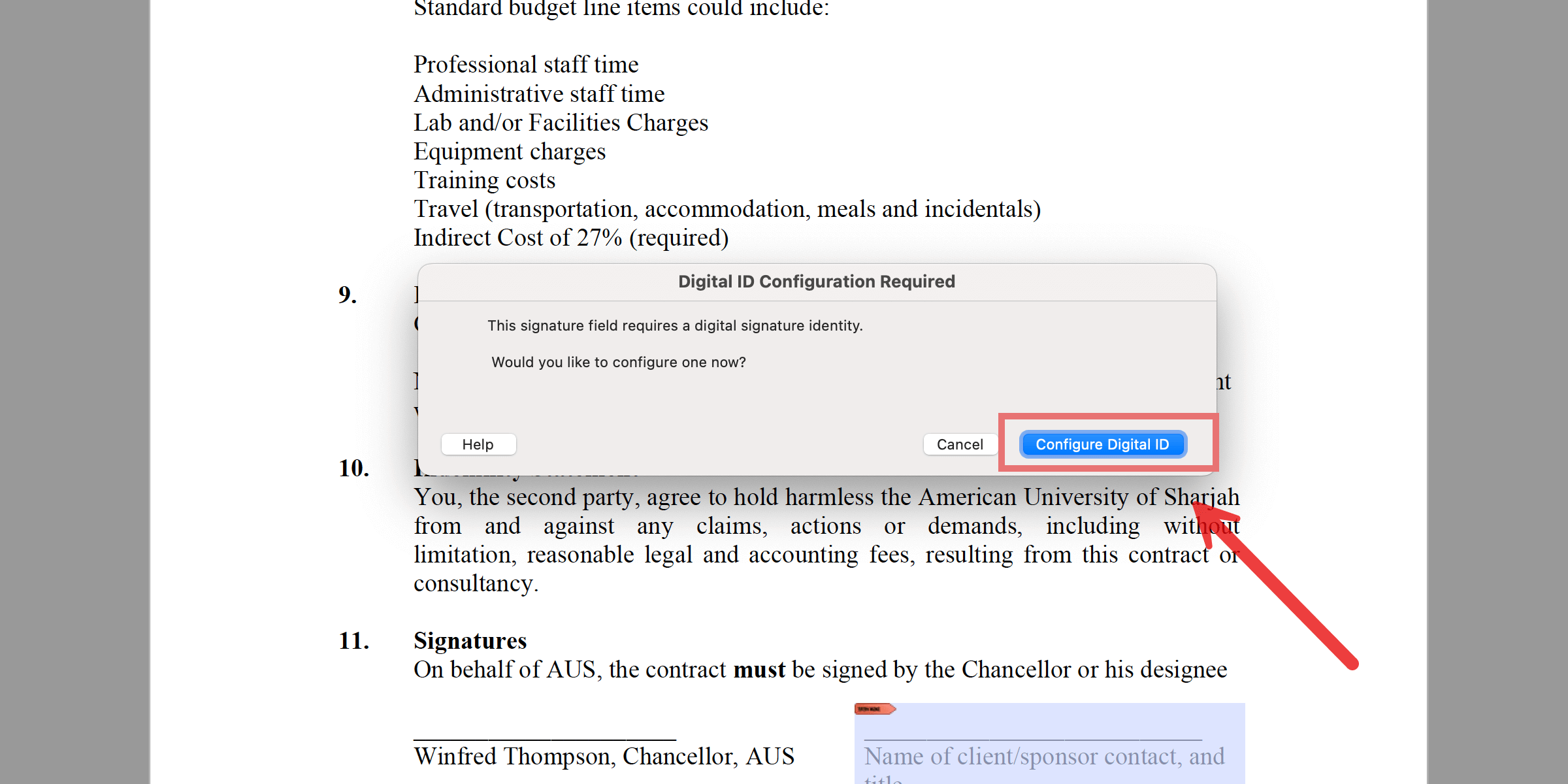
Configure Digital ID in Acrobat
Step 5. Select the Type of Digital ID
Configure your digital ID by selecting the type of your digital ID; you can either import an existing one or create a new one.
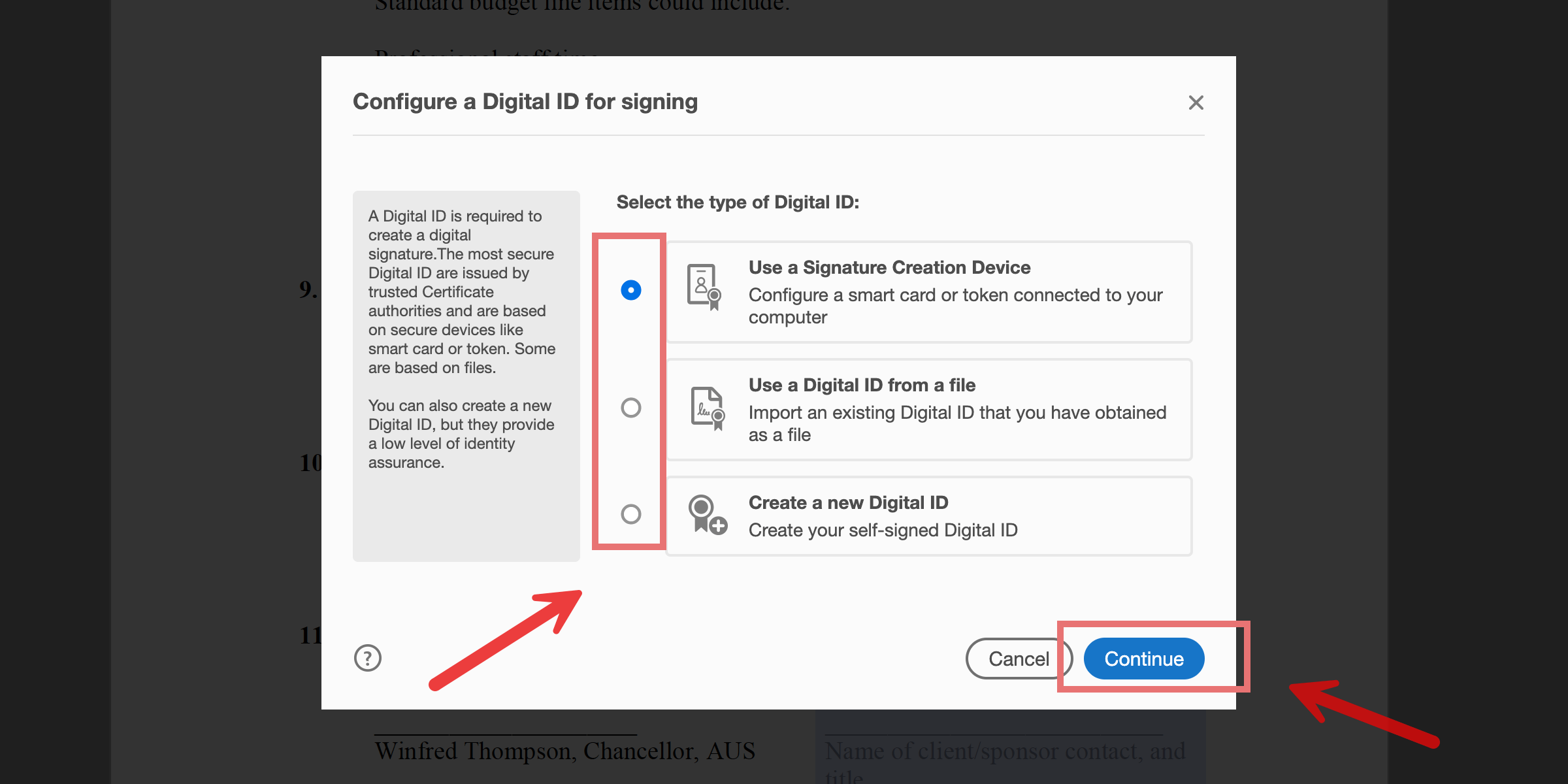
Select Type in Acrobat
Step 6. Fill in the Blanks with the Necessary Information
If you choose to create a new Digital ID, a prompt will appear requesting necessary information, such as your name and email address. We will continue the example using the name Mary.
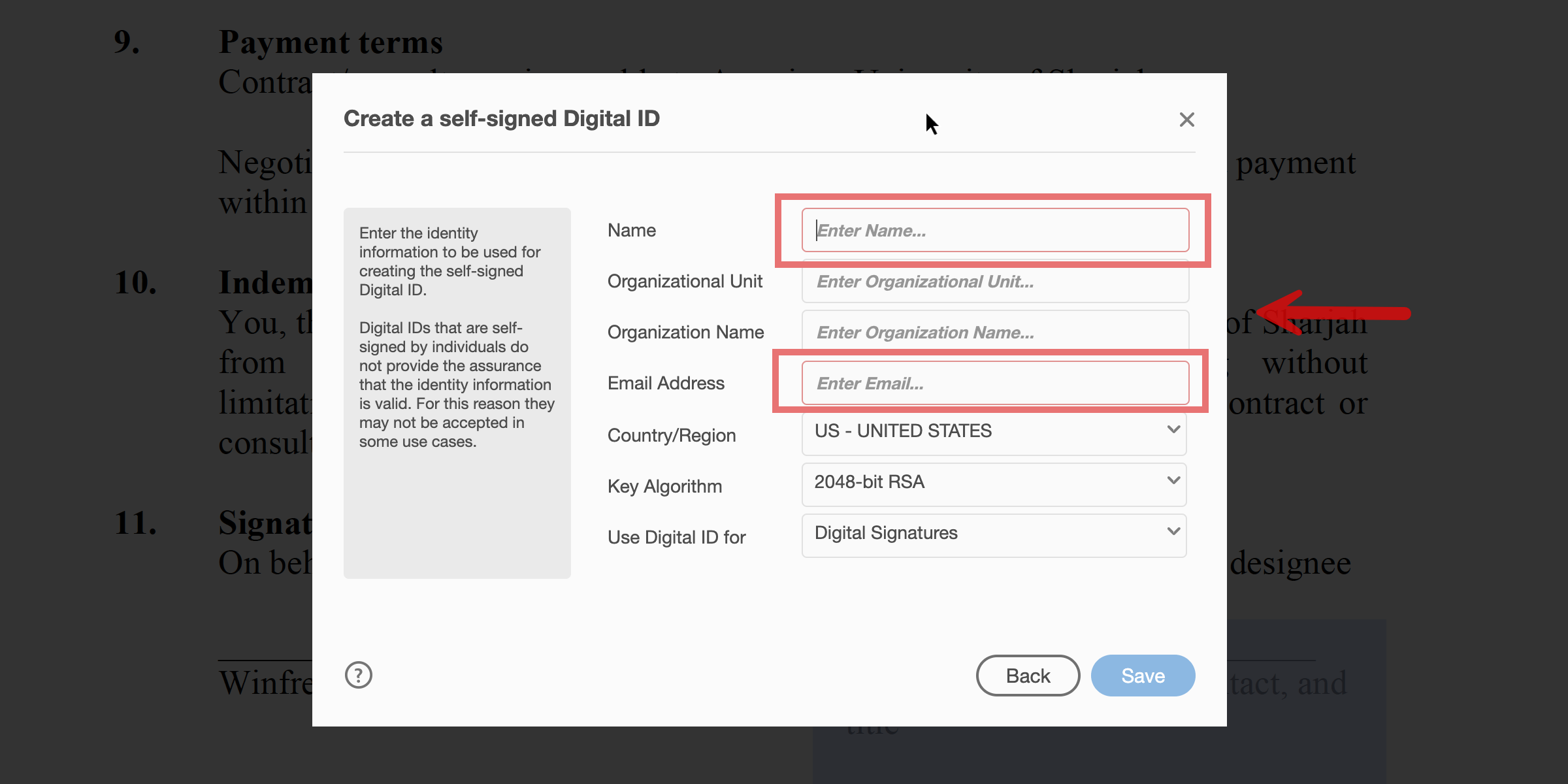
Create a Digital ID in Acrobat
Step 7. Sign and Save
After selecting your CAC, sign the document electronically and save the changes to finalize the security process.
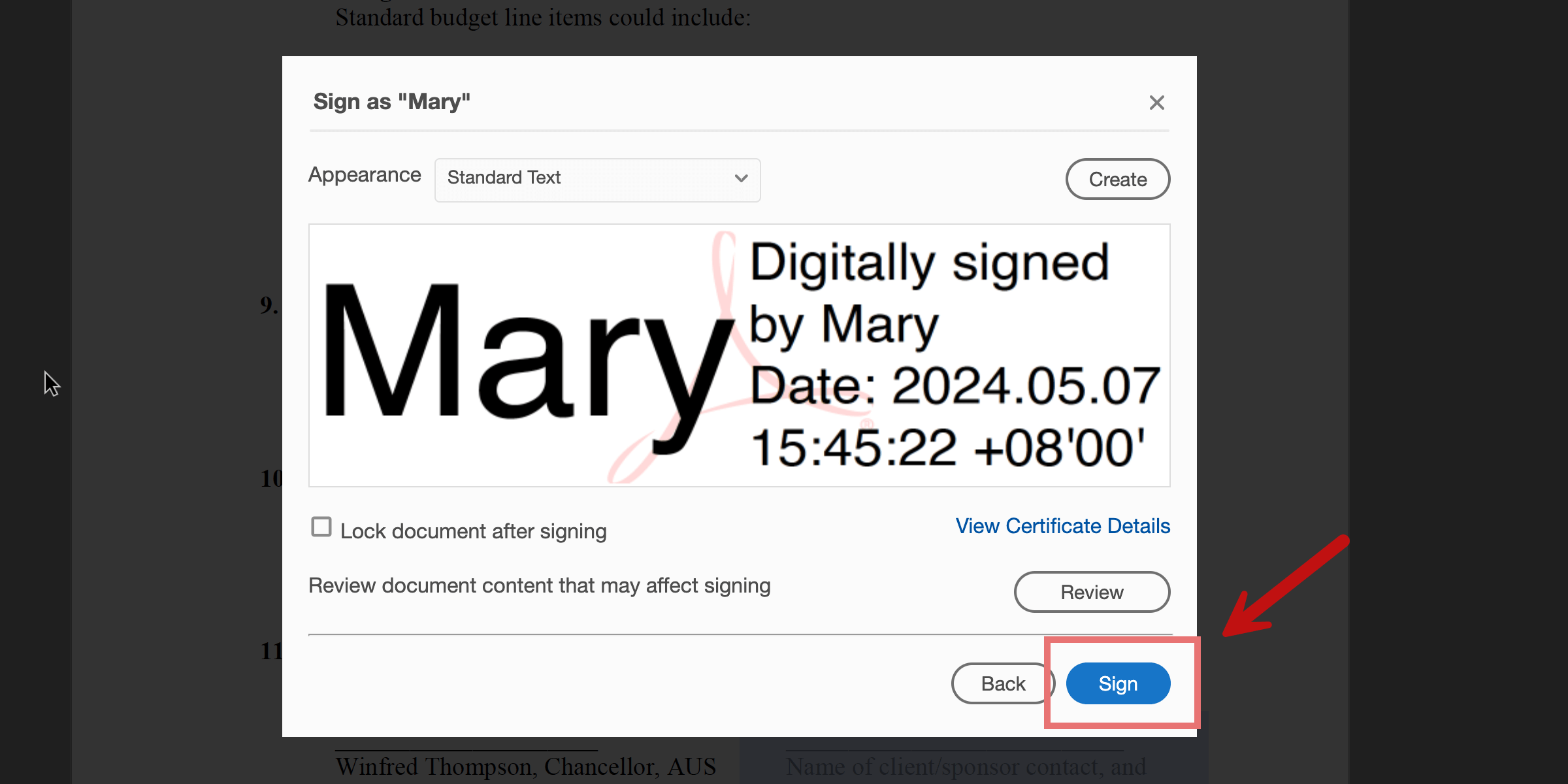
Sign in Acrobat
Then, you will be able to view the PDF with the signature.
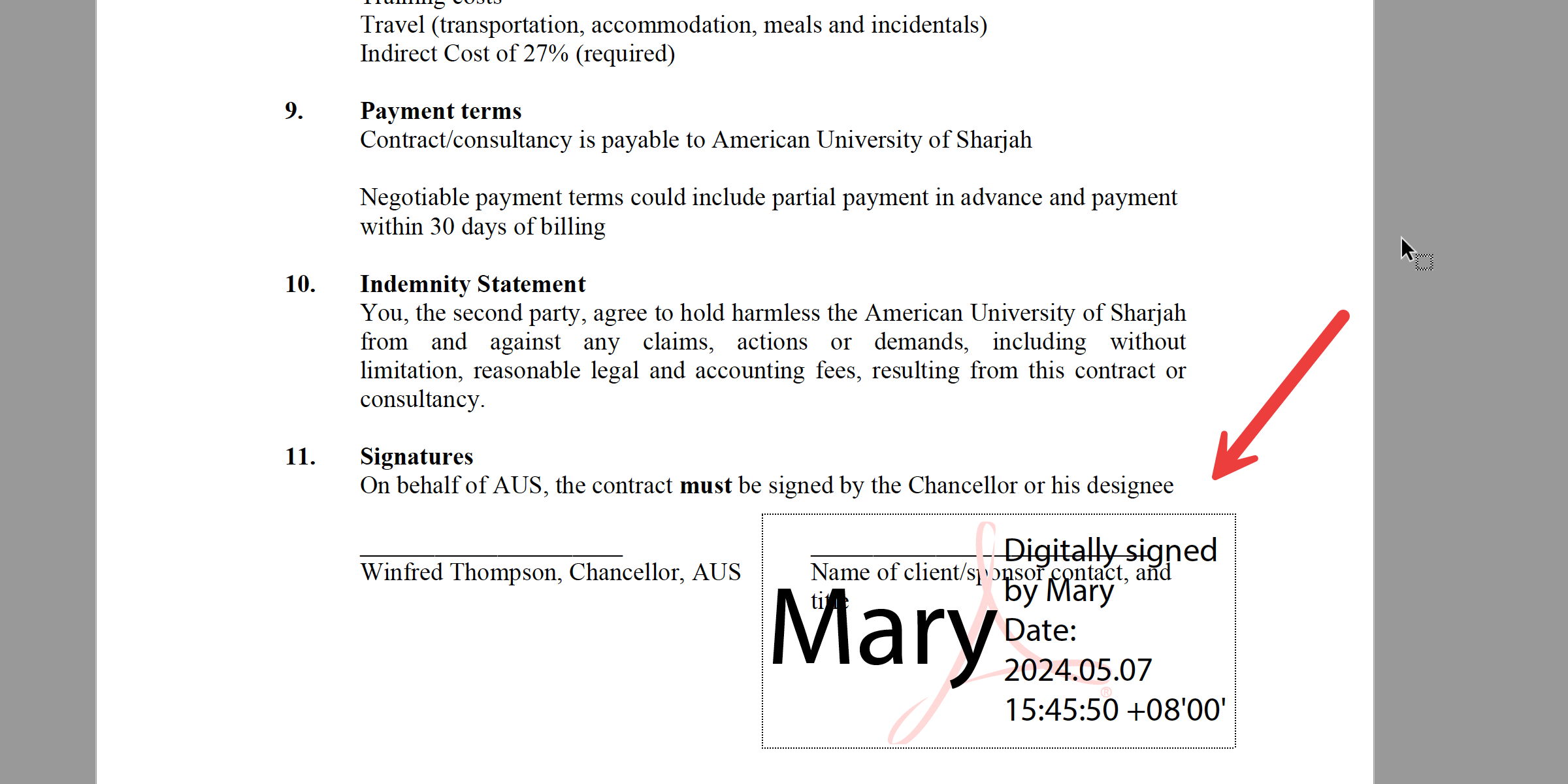
View Results in Acrobat
For detailed instructions on validating these signatures once added, refer to the guide to validate digital signatures.
FAQs of How to Add CAC Signatures to PDFs
Can I Use the Free Adobe Acrobat Reader to Apply a CAC Signature?
No, the free Adobe Acrobat Reader doesn’t support CAC signatures.
You’ll need Adobe Acrobat Pro or Standard to digitally sign PDFs using a CAC. For basic signature images, you can scan and insert a signature, but this is less secure.
Exploring Additional Features in Adobe Acrobat Pro?
Adobe Acrobat Pro DC not only supports CAC signatures but also verifies their authenticity and ensures document integrity. You can customize signatures with logos or seals to meet professional needs.
Do I Need Any Special Software or Hardware to Use My CAC?
Yes, you’ll need:
- A CAC reader to connect your card to your computer.
- Middleware software (like ActivClient) to manage CAC certificates.
- PDF software that supports digital signatures, such as Adobe Acrobat Pro DC.
Can I Add Multiple CAC Signatures to the Same PDF?
Yes, multiple CAC signatures can be added to the same PDF. Each signer must use their own CAC to sign the document, ensuring individual authentication for each signature.
Conclusion
Adding a CAC signature to your PDF is one of the most important skills in the organization or outsourcing your high-security document solutions, which can be easily applied using Adobe Acrobat Pro DC.
While Adobe Acrobat Reader provides free fundamental services for viewing and annotating PDFs, it lacks the appropriate security features for digital signing with a CAC.
